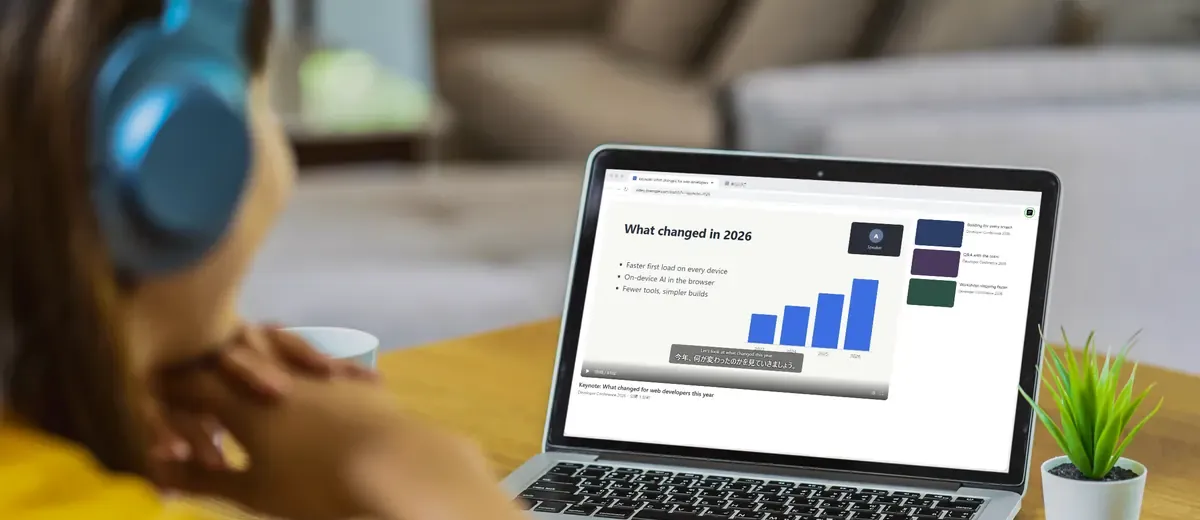
Japanese streams, YouTube, online meetings. LiveSub listens to the audio in your browser and shows English subtitles over the video.
Free, with no time limit. Your audio never leaves your computer. Works in Chrome and Microsoft Edge on a computer (Firefox: through a mic or audio input).
Open the video you want subtitles for in another tab first. Your browser will then ask what to share: pick that tab. Only its audio is used, never the picture.
Free, with no time limit. Your audio never leaves your computer. Works in Chrome and Microsoft Edge on a computer (Firefox: through a mic or audio input).
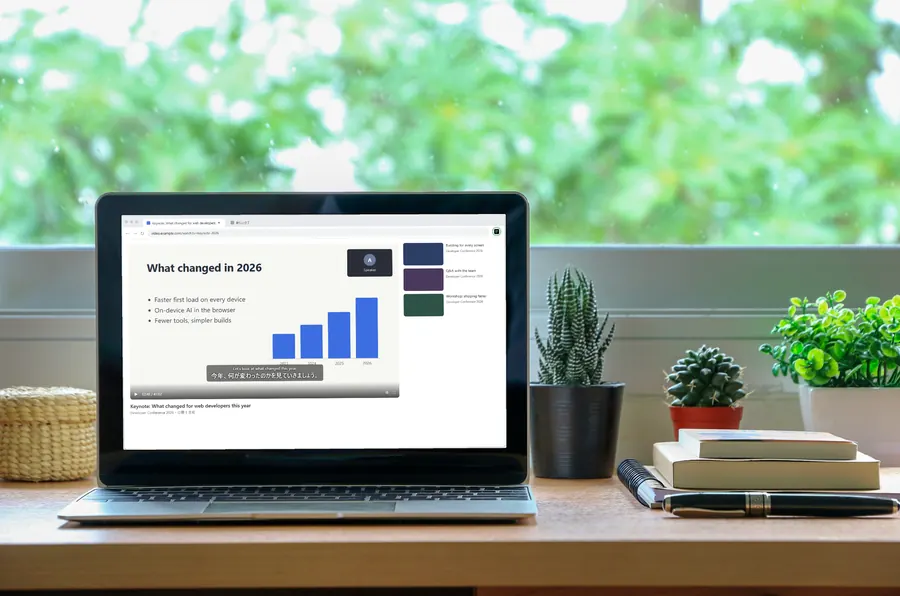
Three steps
Click “Add to Chrome”
Install the extension from the Chrome Web Store. No sign-up. It works in Microsoft Edge too.
Click the LiveSub icon on the video's tab
No sharing dialog and nothing to tick.
Subtitles appear over the video
The original and the translation appear about 1–2 seconds after someone speaks.
Rather not install anything? Press “Try it without installing” and share the video's tab instead.
Made for
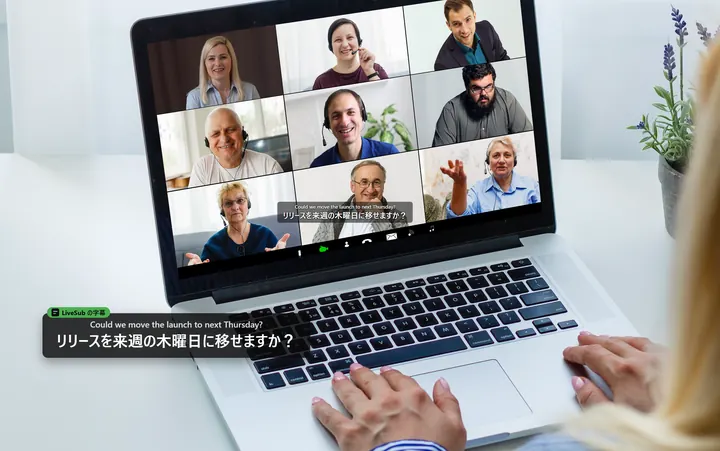
Meetings with Japanese speakers
In meetings you join in the browser, the subtitles show only on your screen. Ask the other participants before you keep a transcript.
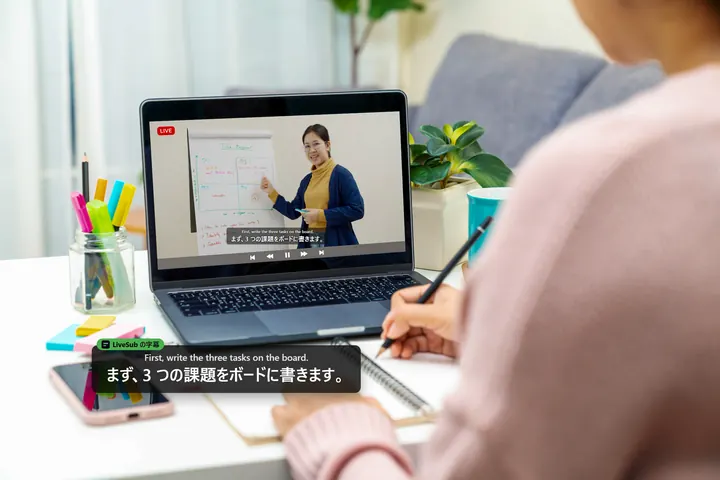
Japanese lectures and webinars
The original and the translation appear together, which also helps you practice listening.
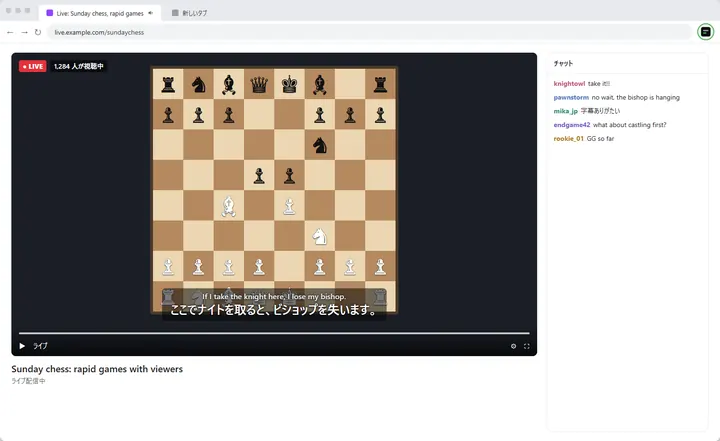
Japanese streams with no captions
LiveSub makes subtitles from the audio itself, even when a video or live stream has no captions to translate.
It works the other way too: Japanese subtitles for English videos.
Illustration: the screen and subtitles are composited
Free for good. Your audio stays with you.
- Free, with no time limit
- Speech recognition runs on your own computer, so there is nothing to meter.
- Your audio never leaves your computer
- Recognition happens inside your browser. We only receive counts of how often LiveSub is used (plus any line you choose to send with “Report translation”).
- Works without installing
- Without the extension, you can still get subtitles from this page.
- Keep the video big
- Open a small subtitle-only window that stays on top.
Good to know
- Subtitles appear about 1–2 seconds after speech
- It is machine translation: names and nuance can come out wrong
- Accuracy drops with loud music or when several people talk at once
- You need Chrome or Edge on a computer (Firefox: through a mic or audio input). Phones are not supported
Try it on the stream you're watching now.
Open this on your computer to get live subtitles
On your computer, open this address in Chrome or Edge:
Subtitles can't be shown on phones or tablets. Please use Chrome or Microsoft Edge on a computer, which can take in a tab's audio.
Send it to yourself now, then just open it on your computer later. No install, no sign-up.
Send to LINE Keep MemoIn Chrome on your phone, use Share → “Send to your devices” to push it to Chrome on your computer. In Safari, “Add to Reading List” syncs to your Mac.
You can still read the guides on this device. How to translate a Japanese livestream in real time
This browser cannot show subtitles
Safari and Firefox have no way to hand over the audio of a tab. Please open this page in Chrome or Microsoft Edge on a computer. In Firefox, LiveSub for Firefox works on YouTube and Twitch videos.
The extension is installed. Three steps to subtitles
Follow these steps in order to get through the first load and see your first subtitles smoothly.
- 1Open a videoOpen the tab with the video you want subtitles for, such as YouTube, and play it.
- 2Open LiveSubOpen LiveSub from the extensions list. Pin it and it stays at the top right from then on.
- 3Check the subtitlesThe speech appears as text in the subtitle panel on this page.
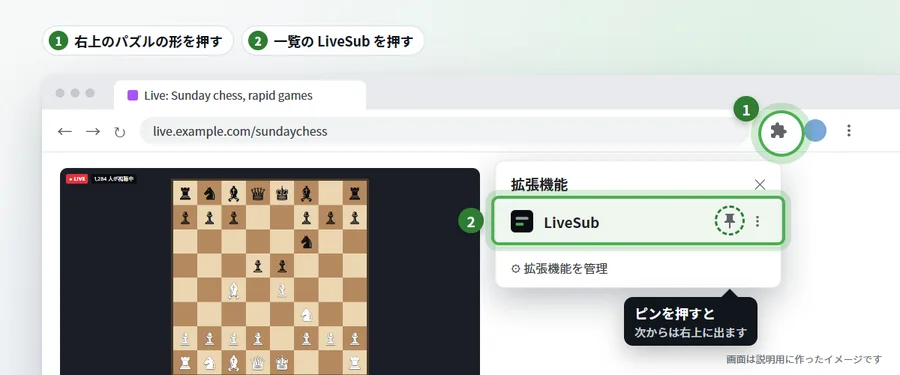
How it works
- 1. Open the video tabOpen the tab with the video you want subtitles for, such as YouTube, and play it. It will not start from this page or from the store page.
-
2. Open LiveSubOn that tab, click the puzzle-piece button at the top right of the browser, then click LiveSub in the list.
Pin it to keep it at the top right
Click the pin next to LiveSub to keep its icon
 in the toolbar, so next time it is a single click.
- 3. Subtitles appearSubtitles appear on this page, and you keep hearing the video.The first time only, speech recognition takes a little while to get ready (a download). It started when this page opened, and it is quick from the second time on.
Keep this LiveSub tab open; the subtitles are made here.
If no subtitles appear
- "No sound yet"Play the video in that tab.
- "Click the LiveSub tab once"Click anywhere on this page once, then go back to the video tab.
- A "!" on the icon Reload the video tab and click again. Some pages, such as Chrome's settings, cannot be used.
Set up
First time here? Press “Watch the how-to video” first. It shows subtitles and how to use LiveSub without sharing anything, and it finishes the one-time download.
To listen to the computer's sound directly (enable Stereo Mix)
- Open Windows Settings → System → Sound → More sound settings
- On the Recording tab, right-click an empty area and choose “Show Disabled Devices”
- Right-click “Stereo Mix” and choose “Enable”
- Reload this page, press Start, and pick “Stereo Mix” under “Input” above
Some computers have no Stereo Mix. A virtual audio cable such as VB-Audio Virtual Cable does the same job. On a Mac, a virtual audio device such as BlackHole works.
One tap sends it. Only your choice is sent, never the subtitles.
If the video is not open yet, open it in another tab first, then press “Start again”. Sharing only uses the audio. The picture is not used, and the audio never leaves your computer.

Pressing "Start" opens a sharing dialog. Pick the tab with your video and tick "Also share tab audio". Works in Chrome and Edge on desktop.
Display settings (what to show, order, floating window)
For the subtitle list on this page and the floating window (history). At the top, the newest line always appears in the same place.
The subtitle bar shows only the latest subtitles, large, in a wide strip. Place it over the bottom of the video to read it like subtitles.
When you start from the extension icon, the latest subtitle appears over that video. Drag it to move it (the position is remembered; double-click to put it back). Press × to hide it until you start again.
Word list (optional)
Advanced settings (recognition setting, GPU)
Translation status
Subtitles (not started)
Newest at the bottomNewest at the topThanks for using LiveSub again. If it helps you, a rating on the Chrome Web Store makes it easier for people with the same problem to find it.
- Open the video you want subtitles for in another tab and play it
- Press “Start (share a tab)”
- In your browser’s share dialog, pick that video’s tab.
Only its audio is used, never the picture
on the video tab (no share dialog)No sound is coming in yet. Play the video in the tab you shared.
- You shared the entire screen (or a window), not a tab. Press “Share again” and pick the video's tab under “Chrome Tab” to receive just the video's sound.
- This computer's sound output seems to have stopped, so the video is probably silent too. Check that your speakers or audio device are connected and powered on, or restart the computer. Changing LiveSub settings will not fix it.
- Is the video playing in the tab you shared? Nothing comes through while it is paused.
- Is the video or the tab muted? A muted tab sends no sound to turn into subtitles.
- Did you share a different tab? Press “Share again” and pick the tab with the video.
Step-by-step guides
Walkthroughs for the situations people use this in, including where people get stuck.
- Anime event and voice actor livestreams in Japanese: how to get live English subtitles (free)
- Edge の動画翻訳(リアルタイム動画翻訳)が使えない・消えたときの代わり(無料)
- Microsoft Edge video translation is gone. A free alternative that still works
- 英語のリスニングに、原文と和訳の字幕を同時に出す方法(無料・ブラウザだけ)
- 英語のニュース動画・ニュース配信に日本語字幕を出す方法(ライブも・無料)
- 英語の動画・ライブ配信に日本語字幕を付ける方法を比較(2026 年)|YouTube・Chrome・拡張機能・LiveSub
- Google Meet の英語の会議に日本語字幕を出す方法(参加者だけで・無料)
- LiveSub real examples: live English subtitles on Japanese meetings, streams and events
- How to watch Japanese game streams and playthroughs with English subtitles (free)
- Live English subtitles for meetings with Japanese speakers (Zoom, Teams, Google Meet)
- Watch Japanese news livestreams and press conferences with English subtitles (free)
- Japanese podcasts with English subtitles: translate Japanese audio live, free
- English subtitles for Japanese streams and videos: every option compared (2026)
- 日本語の会議や配信に英語字幕をつけて、海外の相手に見てもらう方法
- How to get English subtitles on Japanese videos that have no captions (free)
- Japanese listening practice: live Japanese and English subtitles on any video (free)
- 海外のライブ配信に日本語字幕を出す方法(無料・インストール不要)
- 英語の会議・講座・配信で LiveSub が実際に出した日本語字幕の実例(遅れも実測)
- オンライン会議に日本語字幕を出す方法(Zoom・Teams・Google Meet)
- How to watch Niconico videos and live streams with English subtitles (free)
- 英語のポッドキャストを日本語訳で聞く方法|リアルタイム翻訳の字幕(無料)
- Translate Japanese audio to English in real time on your computer (free, no upload)
- How to translate a Japanese livestream in real time (free, in your browser)
- Twitch の海外配信を日本語字幕で見る方法|英語をリアルタイム翻訳(無料)
- How to watch Japanese Twitch streams with English subtitles (free, no install)
- Udemy に日本語字幕を出す方法|日本語字幕のない英語講座もリアルタイムで(無料)
- How to watch Japanese VTuber streams with English subtitles (free, no install)
- 英語のウェビナー・オンラインセミナー(Webセミナー)に日本語字幕を出す方法|参加者だけで・無料
- YouTube auto-translate not showing English on a Japanese video? A free fix
- YouTube の自動翻訳で日本語が出ない・字幕がないときの対処法(ライブ配信も無料)
- Zoom の英語の会議・ウェビナーに日本語字幕を出す方法(参加者だけで・無料)
Frequently asked questions
- Does it cost anything?
- No. There is no time limit either. Speech recognition runs on your own computer, so there is no per-minute cost to pass on to you.
- Do I need to install anything or sign up?
- Neither. Just open the page in your browser. The first run downloads the speech recognition model (on the Balanced setting, about 206MB for English and 590MB for Japanese); after that it is reused. There is also an optional free Chrome extension for skipping the sharing dialog, and LiveSub for Firefox for YouTube and Twitch videos.
- Which browsers and devices work?
- Chrome or Microsoft Edge on a computer. In Firefox, LiveSub listens through a microphone or a loopback audio input such as Windows Stereo Mix; on YouTube and Twitch, LiveSub for Firefox turns the video's audio into subtitles directly. Safari uses the same input method but is untested, and phones cannot share tab audio, so mobile does not work.
- Is my audio sent anywhere?
- No. Recognition happens entirely inside your browser. We only receive anonymous counts of how often features are used — never audio, transcripts or translations.
- Does it work outside YouTube?
- Yes. There is no list of supported sites. If a browser tab is playing sound — a livestream, a lecture, an online meeting — it can be subtitled.
- What should I check if no subtitles appear?
- Check that “Also share tab audio” was ticked in the sharing dialog — that is the cause almost every time. You also need to pick the “Chrome Tab” section rather than the whole screen.
- Can it go from Japanese to English?
- Yes. Use “Translate from / to” to switch between English→Japanese and Japanese→English. You can switch while subtitles are running; the change applies from the next sentence.
- Faint text appears and changes before the subtitle
- That is not a fault. While someone is still speaking, we show a running guess from the audio so far. It is replaced by the finished subtitle once the sentence ends, so you spend less time waiting.