 LiveSub
Translate Japanese audio to English in real time on your computer (free, no upload)
Published: 2026-10-18 ・ Updated: 2026-10-26
Works in Chrome or Edge on a computer (Firefox: through a microphone or audio input; not on phones). Japanese ⇄ English only.
You have Japanese audio playing and you want to know what is being said, now, not after uploading a file and waiting for a transcript.
This guide shows how to translate Japanese speech into English in real time while it plays in your browser, with the audio staying on your own computer.
What you'll learn
- What kind of Japanese audio you can translate this way, and what you cannot
- How to start in a minute, with nothing uploaded
- How to keep a transcript of the Japanese and the English
In short: if the Japanese audio is playing in a Chrome or Edge tab, LiveSub can turn it into Japanese text and an English translation as it plays, about one to two seconds behind the speaker. Speech recognition and translation run on your computer, so nothing is uploaded. It is free with no time limit. It does not listen to your microphone.
What you can translate
Anything with Japanese speech that plays in a browser tab:
- Videos: YouTube, Niconico, and video players on other sites, including videos with no captions
- Live streams: talk streams, VTubers, game streams, news and press conferences
- Podcasts and radio that play in the browser
- Online classes and webinars watched in the browser
- Web meetings joined in the browser instead of the desktop app
What it cannot do:
- Your microphone or a conversation in the room. It only listens to a browser tab
- Desktop apps such as the Zoom or Teams app. Join in the browser instead
- Audio files on your computer that are not playing in the browser
- Phones and tablets. Mobile browsers cannot share tab audio
- Safari. It is untested; use Chrome or Edge. In Firefox, LiveSub listens through a microphone or audio input, and LiveSub for Firefox covers YouTube and Twitch videos
How it works
LiveSub receives the sound of one browser tab. A speech recognition model (Whisper) running inside your browser turns the Japanese into text, and the browser's built-in on-device translator turns that into English. Both lines appear as subtitles, and every line is kept in order so you can scroll back.
Because all of this happens on your computer, the audio and the text are not sent to a server. That is also why there is no account and no limit on minutes.
Start in a minute
- Open LiveSub in Chrome or Edge on your computer
- Under "Translate from / to", choose Japanese → English
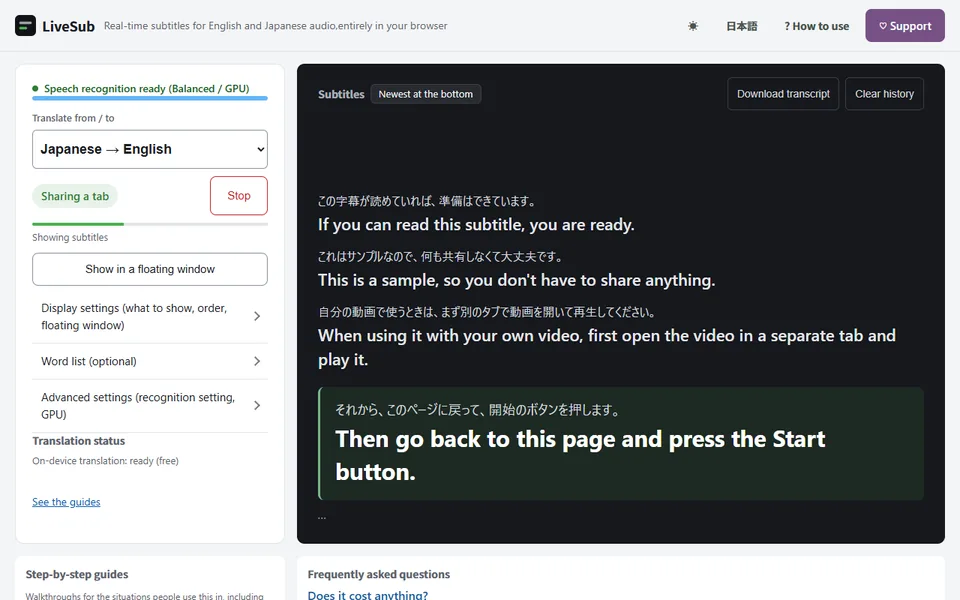
- Press "Try the how-to video (no sharing)" once. It downloads the speech model (about 590MB for Balanced, only the first time) and shows how the subtitles look
- Play your Japanese audio in another tab
- Press "Start (share a tab)", choose that tab, tick "Also share tab audio", and press Share
With the free Chrome extension, step 5 is one click on the extension icon in the audio's tab, and the subtitles appear over the video.
Keep what was said
- "Download transcript" saves the Japanese and the English, line by line, with timestamps. Useful for notes after a class or a meeting
- "Show in a floating window" keeps the subtitles in a small window on top, so you can read them while working in another app
- The word list fixes names and terms that come up a lot, so they are spelled the same way each time
How accurate is it?
Clear speech from one person (a lecture, a news reader, a podcast host) comes out well. Accuracy drops with background music, several people talking at once, heavy slang and names. The translation is machine translation: good for following what is said, not for anything you need word-perfect.
If your computer has a powerful GPU, the Japanese-tuned recognition setting mishears noticeably less.
Wrapping up
When the Japanese is playing in your browser, you do not need to record it, upload it, or wait. Start LiveSub on that tab and read the English as it plays.
Open LiveSub and press "Try the how-to video (no sharing)" to see it with a short how-to video first.
About this guide: written by the maker of LiveSub. Steps, button names and figures are checked against the LiveSub app as of the date above. If something is wrong, please tell us through the contact page.