 LiveSub
English subtitles for Japanese streams and videos: every option compared (2026)
Published: 2026-10-18 ・ Updated: 2026-10-26
Works in Chrome or Edge on a computer (Firefox: through a microphone or audio input; not on phones). Japanese ⇄ English only.
You want to watch something in Japanese, and there are no English subtitles. Maybe it is a live stream, maybe a video nobody captioned, maybe a webinar.
There are more ways to get subtitles than there used to be, but most of them only work in one situation. This guide compares the options as of October 2026, including where each one stops working, so you can pick the right one quickly.

What you'll learn
- The one question that decides which option works for you
- What YouTube, Chrome, Windows, Mac, extensions and meeting apps can and cannot do with Japanese
- Which option to use for videos, live streams, meetings and listening practice
In short: if the video already has Japanese captions, YouTube's auto-translate or a subtitle extension is the easiest. If it has no captions, or it is a live stream, you need something that listens to the audio. Chrome's built-in Live Caption and Live Translate can do that for free, but check that Japanese is offered in your Chrome. LiveSub is a free website and extension made for this case: it shows the Japanese and the English together, keeps the transcript, and runs on your computer.
First question: does the video already have captions?
Most tools translate captions that already exist. They do not listen to the audio.
- Uploaded Japanese videos on YouTube often have automatic captions, so translation tools have something to work with.
- Japanese live streams usually do not. YouTube's automatic captions for live streams are English-only, so a Japanese stream has nothing to translate while it is live.
- Webinars, podcasts, and other sites' players often have no captions at all.
If there is nothing to translate, you need a tool that makes captions from the sound itself.
The options, one by one
YouTube auto-translate
YouTube can machine-translate a video's caption track into English. It needs captions to start from, uploaded or automatic.
- Works well on uploaded videos that have Japanese captions
- Does not help on Japanese live streams: YouTube's live automatic captions are English-only
- Free, YouTube only
Chrome Live Caption and Live Translate
Chrome can caption audio playing in the browser and translate the captions. You turn it on under Settings > Accessibility. It is available on Windows, Mac and Linux.
- Works on any audio in Chrome, including live streams and calls
- Captions are made on your computer. Translation sends the caption text to Google
- Google's help page does not publish the list of caption languages for computers. Open the setting and check whether Japanese is offered in yours
- Free. Shows one line of captions; there is no transcript to scroll back through
Microsoft Edge video translation
Edge used to translate videos in real time. Microsoft retired it: it was announced in Edge 152 (August 2026) and finished in Edge 155 (October 2026).
Windows 11 Live Captions
Windows can caption any audio on the PC, on the device. Translation into English, including from Japanese, works only on Copilot+ PCs (newer PCs with an AI chip) on Windows 11 24H2 or later. The only other translation target is Simplified Chinese, so English to Japanese is not possible.
Mac and iPhone Live Captions
Apple's Live Captions can caption Japanese audio on Apple silicon Macs and on iPhone. They do not translate it. Apple's Live Translation is for Messages, phone calls and FaceTime, not for videos in a browser.
Subtitle extensions (Language Reactor, Immersive Translate, Trancy)
These are popular with learners and are excellent when captions exist.
- Language Reactor: dual subtitles on Netflix and YouTube, built on the site's own subtitles
- Immersive Translate: translates YouTube live streams only when closed captions are on. Its AI subtitles from speech are a paid feature for recorded videos
- Trancy: its AI subtitles send YouTube audio to a speech service and take a few minutes, so they are not live. Paid, YouTube only
Meeting apps (Zoom, Teams, Google Meet)
All three have translated captions that support Japanese and English, but only inside their own meetings, and only on paid plans (Zoom as a paid add-on or higher plan, Teams with Teams Premium or Copilot licences, Meet on certain Workspace plans). In Zoom the host has to enable it.
Paid audio translators
Several apps and extensions translate tab or system audio in real time, usually with per-minute plans, for example around $20 a month for a few hundred minutes. Most send the audio to a cloud service.
LiveSub
LiveSub is a free website and Chrome extension (Firefox works through a microphone or audio input, with an add-on for YouTube and Twitch) made for videos and streams without English subtitles.
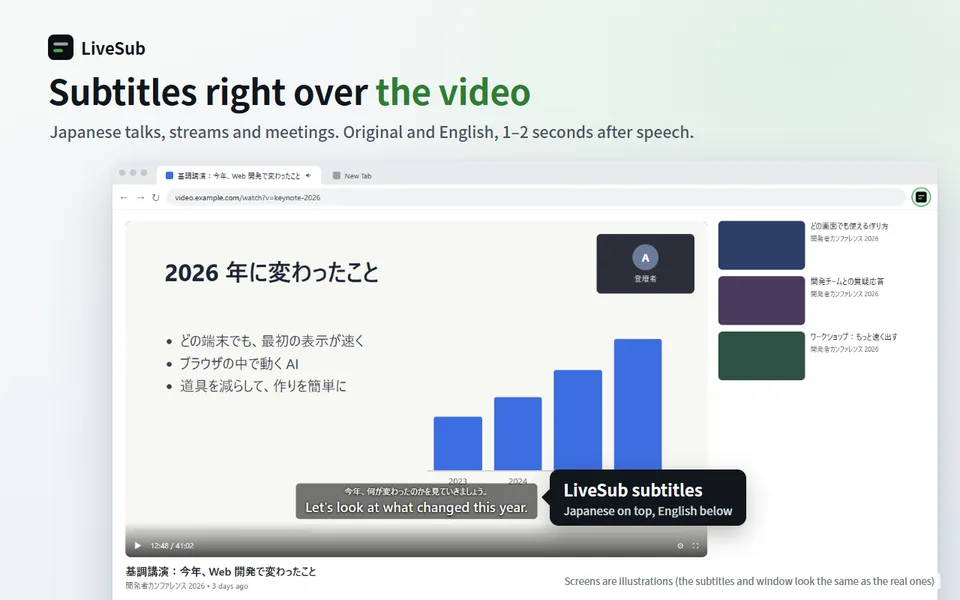
- Makes captions from the sound of a browser tab, so it works on live streams and on any site
- Shows the Japanese and the English together, about one to two seconds behind the speaker, and keeps the transcript so you can scroll back
- Speech recognition and translation run on your computer; the audio is not uploaded
- Floating subtitle window, a glossary for names, transcript download
- Needs Chrome or Edge on a computer. In Firefox, it listens through a microphone or audio input (YouTube and Twitch also work with LiveSub for Firefox). It does not work on phones
Side by side
| Option | Live streams | Needs existing captions | Japanese → English | Cost | Where it works |
|---|---|---|---|---|---|
| YouTube auto-translate | Not for Japanese streams | Yes | Yes | Free | YouTube |
| Chrome Live Caption + Translate | Yes | No | Check your Chrome | Free | Chrome (Windows, Mac, Linux) |
| Edge video translation | Retired | — | — | — | — |
| Windows 11 Live Captions | Yes | No | Copilot+ PCs only | Free | Windows |
| Mac / iPhone Live Captions | Yes | No | Captions only, no translation | Free | Apple devices |
| Subtitle extensions | Only with captions | Yes (for live) | Yes | Free tiers, paid plans | Mainly YouTube, Netflix |
| Meeting apps | Their own meetings | No | Yes | Paid plans | Zoom, Teams, Meet |
| Paid audio translators | Yes | No | Yes | Per-minute plans | Varies |
| LiveSub | Yes | No | Yes | Free | Chrome or Edge on a computer (Firefox: through a microphone or audio input) |
Which one to use
- An uploaded Japanese YouTube video with captions: YouTube auto-translate, or Language Reactor if you are learning
- A Japanese live stream (VTubers, games, news): something that listens to the audio. Try Chrome Live Translate if your Chrome offers Japanese; use LiveSub if you want both lines on screen and a transcript
- A meeting at work: the meeting app's translated captions if your company pays for them; otherwise join in the browser and use LiveSub on that tab
- Listening practice: a tool that shows the Japanese and the English together, so you can check what you heard
Where LiveSub is weaker
To be fair about it:
- Names and slang come out wrong more often than with human subtitles. The glossary helps with names you know in advance
- Loud music or several people talking at once lowers accuracy. Singing streams are hard
- About one to two seconds behind the speaker
- Computer only. Phones cannot share tab audio
- A one-time download of the speech model (a few hundred megabytes for Japanese) the first time
Wrapping up
Start with the question of captions. If the video has them, translating them is easiest. If it does not, or it is live, use something that listens to the audio.
To try the audio route now, open LiveSub on your computer and press "Try the how-to video (no sharing)". It shows how the subtitles look without sharing anything.
About this guide: written by the maker of LiveSub. Steps, button names and figures are checked against the LiveSub app as of the date above. If something is wrong, please tell us through the contact page.