 LiveSub
How to watch Niconico videos and live streams with English subtitles (free)
Published: 2026-10-18 ・ Updated: 2026-10-26
Works in Chrome or Edge on a computer (Firefox: through a microphone or audio input; not on phones). Japanese ⇄ English only.
Niconico is where a lot of Japanese content lives first: game streams, talk shows, music, and long-running series that never get an English release. Almost none of it has captions, and the scrolling comments are in Japanese too.
This guide shows how to get English subtitles made from the audio on Niconico videos and Niconico Live, without waiting for anyone to translate them.
What you'll learn
- Why translation tools usually have nothing to work with on Niconico
- How to get live English subtitles on Niconico videos and broadcasts
- What to do about the scrolling comments, names, and noisy streams
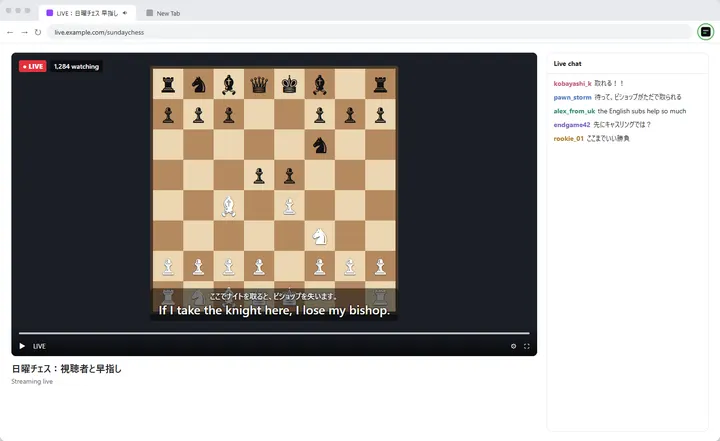
In short: most translation tools translate captions, and Niconico videos usually have none. LiveSub listens to the Niconico tab instead and shows the Japanese with an English translation as subtitles, about one to two seconds behind the speaker. It works on live broadcasts as well as videos. It is free and runs in Chrome or Edge on your computer.
Why Niconico is hard to translate
Tools like YouTube's auto-translate or subtitle extensions work by translating a caption track. On Niconico:
- Videos rarely have caption tracks. There is nothing for a translator to read
- Live broadcasts have no automatic captions. The speech is only in the audio
- The comments are not subtitles. They are viewers' reactions, not what the streamer is saying
So you need something that turns the audio itself into text.
Make subtitles from the audio
LiveSub is a website (with an optional Chrome extension). It takes the sound of a browser tab, recognises the Japanese speech on your own computer, and translates it into English with the browser's built-in on-device translator. The audio is not uploaded anywhere.
It does not need to know anything about Niconico. If the video or broadcast plays in your browser tab, LiveSub can subtitle it.
What you need:
- Chrome or Microsoft Edge on a computer. In Firefox, LiveSub listens through a microphone or a loopback audio input (such as Windows Stereo Mix); LiveSub for Firefox covers YouTube and Twitch only, not Niconico. Phones and tablets cannot share tab audio
- A video that plays for you in the browser. If a video is members-only or limited to some regions, LiveSub cannot change that
- A one-time download of the speech model. For Japanese, the Balanced setting is about 590MB
Step by step
1. Open LiveSub and choose Japanese → English
Open LiveSub in a new tab. Under "Translate from / to", choose Japanese → English.
2. Press "Try the how-to video (no sharing)" once
Press "Try the how-to video (no sharing)". A short how-to video in Japanese plays with subtitles, without sharing any tab. It checks that your computer can run it and gets the one-time download done before the broadcast starts.
3. Start on the Niconico tab
Pick one of the two ways:
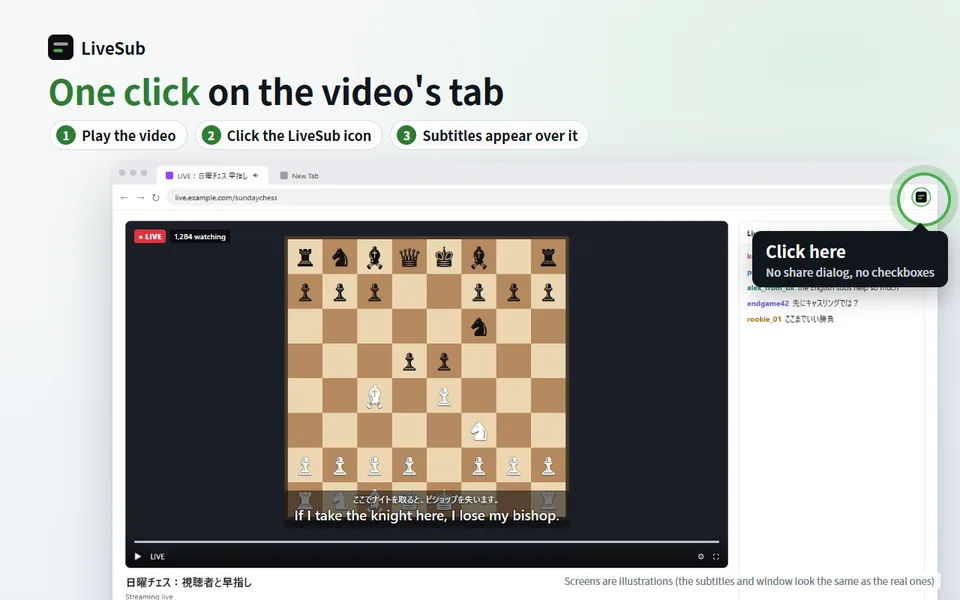
- With the Chrome extension (easiest): go to the Niconico tab, play the video, and click the LiveSub icon. Subtitles appear over the video. If you cannot see the icon, click the puzzle-piece button at the top right of Chrome and choose LiveSub there
- Without the extension: press "Start (share a tab)" in LiveSub, choose the Niconico tab, tick "Also share tab audio", and press Share
Tips for Niconico
If the comments cover the subtitles
The scrolling comments can pass over the subtitles. You can drag LiveSub's subtitles to another spot on the video (the position is remembered), or turn the comments off in the Niconico player while you watch.
Add names to the word list
Streamers' names, game titles and in-jokes are the words speech recognition gets wrong most. Add the ones you know to LiveSub's word list, and it will fix them to your spelling.
Use the floating window for long broadcasts
"Show in a floating window" opens a small subtitle window that stays on top of other windows. It helps when you watch in fullscreen or keep chat open beside the video.
Pick the recognition setting for the stream
Balanced keeps up with live speech and is the right start. If your computer has a powerful GPU, Japanese-tuned mishears less, and Anime/game voice is worth trying on loud, expressive game streams.
What it cannot do
- Names and slang are often wrong, even with the word list
- Loud game sound, music, or several people talking at once lowers accuracy. Singing is rough
- Subtitles come one to two seconds after the speech
- It is machine translation: you will follow the conversation, but jokes and wordplay often get lost
Wrapping up
Niconico's best broadcasts may never get translated. You can still follow them live: play the broadcast, start LiveSub on that tab, and read along in English.
Open LiveSub on your computer and press "Try the how-to video (no sharing)" first, so the download is done before the next broadcast.
About this guide: written by the maker of LiveSub. Steps, button names and figures are checked against the LiveSub app as of the date above. If something is wrong, please tell us through the contact page.