 LiveSub
LiveSub real examples: live English subtitles on Japanese meetings, streams and events
Published: 2026-10-26
Works in Chrome or Edge on a computer (Firefox: through a microphone or audio input; not on phones). Japanese ⇄ English only.
"Real-time translation" can mean almost anything until you see it. How good are the subtitles, and how far behind the speaker do they appear?
This page shows the English subtitles the LiveSub extension actually produced on Japanese audio, scene by scene, with screenshots. We also measured how long each subtitle took to appear after the sentence ended.
What this page covers
- The English subtitles LiveSub produced for a meeting, an anime announcement, a Japanese lesson and two livestreams
- How long each subtitle took to appear after the sentence ended (measured)
- How the examples were recorded, and why real streams will be harder
In short: in all five scenes, the English subtitle appeared about 1.1 to 1.7 seconds after a Japanese sentence ended. It is machine translation, so some lines read stiffly, and one line below changed the meaning.
1. How we recorded these
To show the subtitles exactly as they appear, we recorded them like this:
- Subtitles: produced by the LiveSub extension (Chrome) on the live site. Nothing was edited by hand
- Video: stock footage (not real streamers or shows)
- Voice: a synthetic Japanese voice reading a script, one sentence at a time with a one-second pause
- Delay: from the moment the voice finished a sentence to the moment its English subtitle appeared
A synthetic voice is clear and there is no background music. Real meetings and streams will be less accurate than this (see section 7).
2. A meeting in Japanese
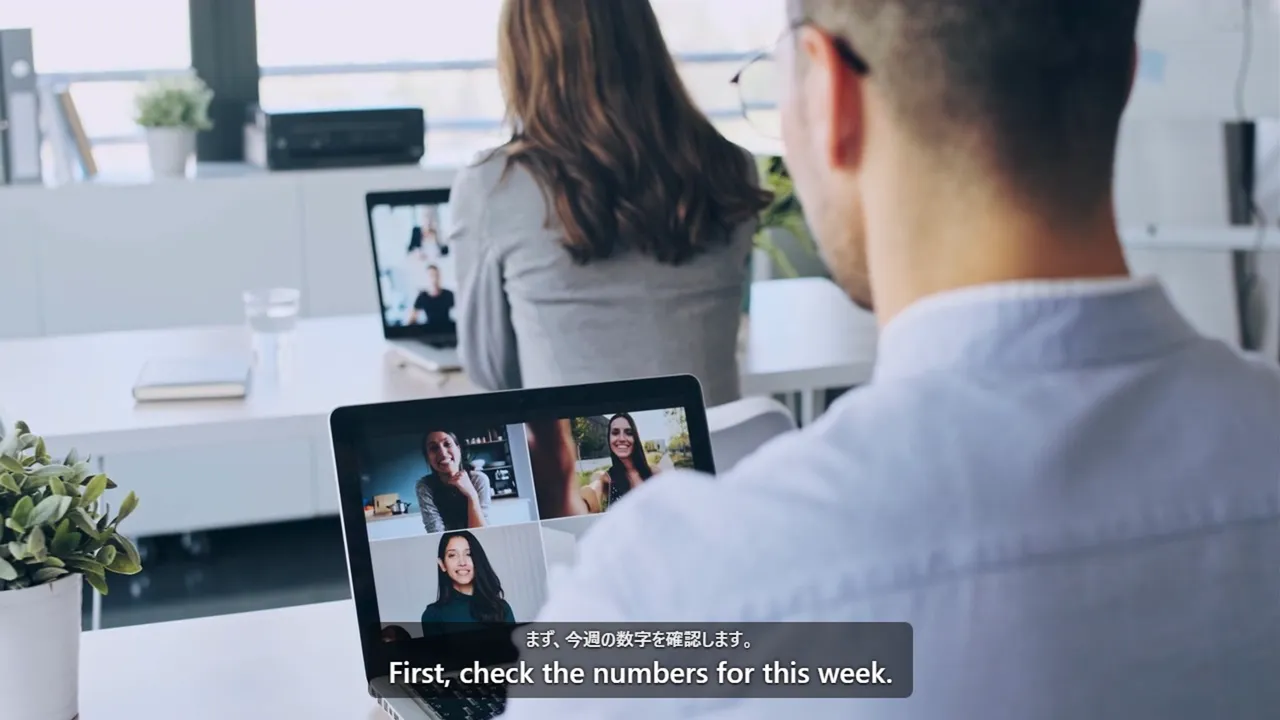
| Japanese it heard | English subtitle | After the sentence |
|---|---|---|
| では、始めましょう。 | Let's get started. | about 1.4 s |
| まず、今週の数字を確認します。 | First, check the numbers for this week. | about 1.2 s |
| 新しい機能の公開を来週の木曜日に移せますか | Can new features be released on next Thursday? | about 1.7 s |
| この会議の後で資料を送ります | I'll send the materials after this meeting | about 1.2 s |
The third line asks whether the release can be moved to next Thursday. The English lost the "move" part. This is the kind of mistake to watch for in meetings. How to use it in a meeting: Live English subtitles for meetings with Japanese speakers.
3. An anime announcement
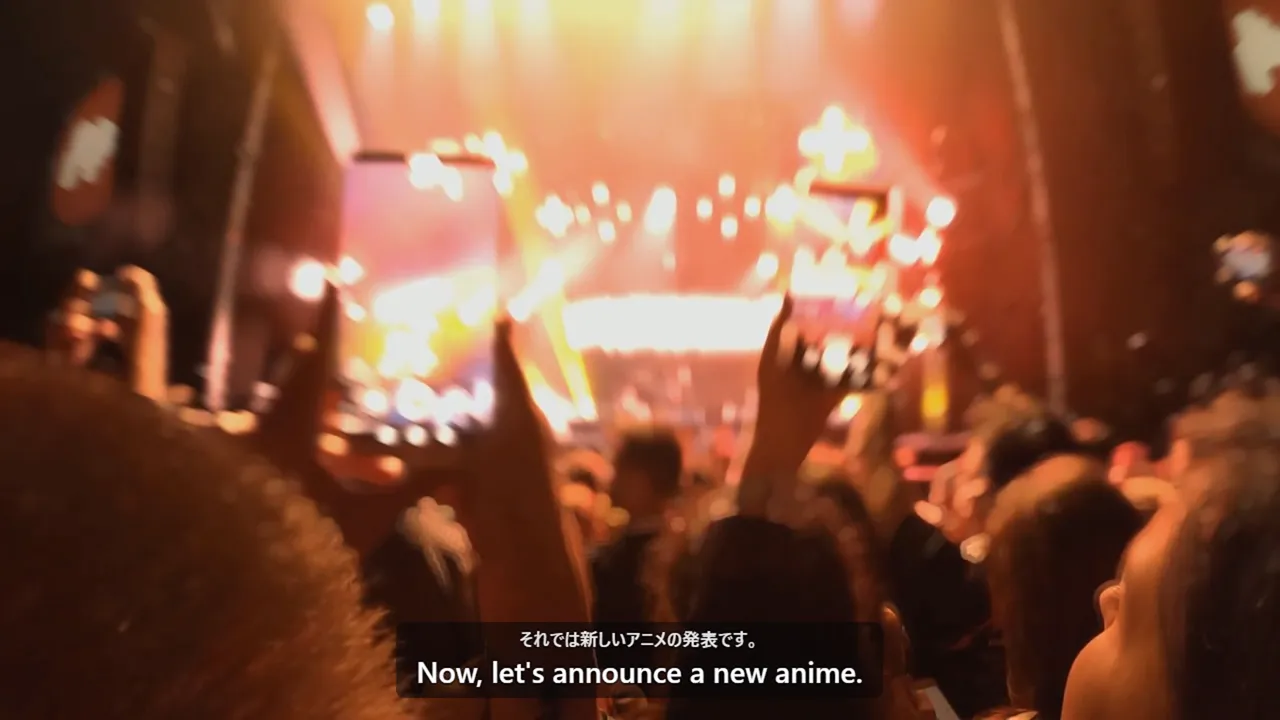
| Japanese it heard | English subtitle | After the sentence |
|---|---|---|
| こんにちは | Good afternoon | about 1.1 s |
| それでは新しいアニメの発表です。 | Now, let's announce a new anime. | about 1.2 s |
| 放送は来年の春から始まります | Broadcast starts next spring | about 1.1 s |
| この後、キャストの皆さんが登場します。 | After this, the cast members will appear. | about 1.2 s |
4. A Japanese lesson
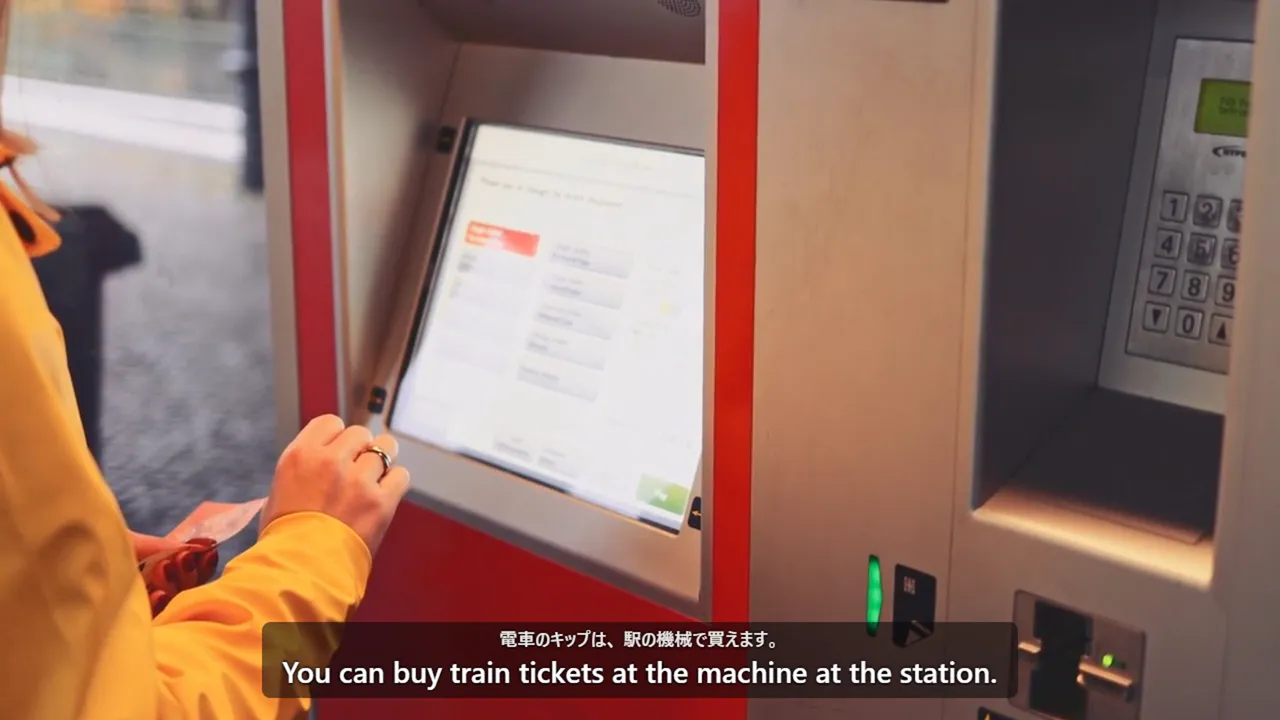
| Japanese it heard | English subtitle | After the sentence |
|---|---|---|
| こんにちは | Good afternoon | about 1.2 s |
| 電車のキップは、 駅の機械で買えます。 | You can buy train tickets at the machine at the station. | about 1.3 s |
| ゆっくり話すので一緒に練習しましょう | Let's practice together as we speak slowly | about 1.2 s |
| 最後によく使う言葉をまとめます。 | Finally, I will summarize the words that are often used. | about 1.2 s |
The Japanese line stays on screen above the English, so you can check what was said. For listening practice, see Japanese listening practice.
5. A Japanese livestream
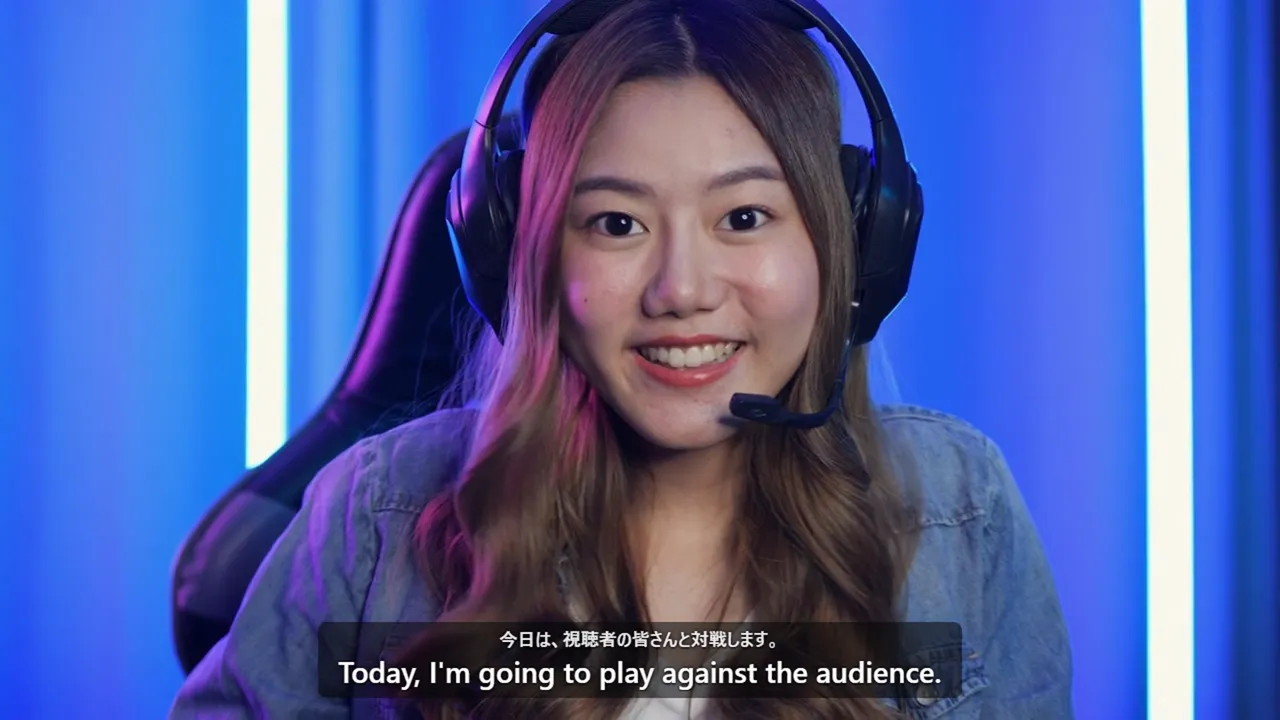
| Japanese it heard | English subtitle | After the sentence |
|---|---|---|
| こんばんは | Good evening | about 1.3 s |
| 今日は、視聴者の皆さんと対戦します。 | Today, I'm going to play against the audience. | about 1.2 s |
| この作戦はちょっと危ないかもしれません。 | This strategy may be a bit dangerous. | about 1.2 s |
| コメントありがとう!すごく嬉しいです。 | Thank you for your comment! I'm very happy. | about 1.2 s |
"視聴者の皆さんと対戦します" means playing against viewers. "Against the audience" is close, but a fan would say it differently.
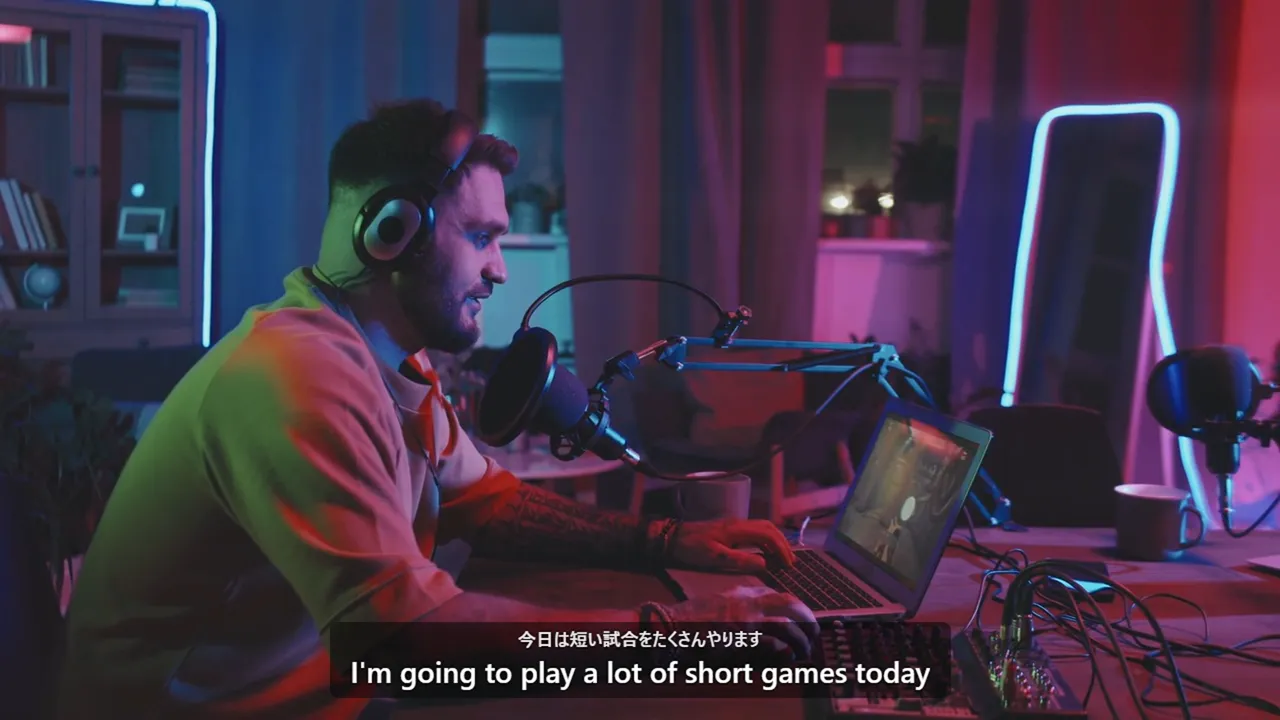
6. Another Japanese livestream
| Japanese it heard | English subtitle | After the sentence |
|---|---|---|
| こんばんは | Good evening | about 1.2 s |
| 今日は短い試合をたくさんやります | I'm going to play a lot of short games today | about 1.2 s |
| コメント たくさんありがとう | Thank you so much for your comments | about 1.2 s |
| 次はもっと強い相手とやってみます | Next time I'll try with a stronger opponent | about 1.2 s |
How to use it on streams: How to translate a Japanese livestream in real time.
7. What to expect on real streams
These examples use clean audio. In real meetings and streams, accuracy drops with:
- Speech: fast talking, accents, filler words and restarts
- Sound: background music, sound effects, several people talking at once
- Words: names of people, places, characters and companies (add them to the glossary and they come out right)
- Translation: it is machine translation, so phrasing can be stiff and meaning can shift, as in the meeting example
- On-screen text is not translated. Only the audio is
The delay can also be longer on real streams. Expect subtitles about 1 to 2 seconds behind, not simultaneous interpretation.
8. Try it yourself
- Use Chrome or Microsoft Edge on a computer. It does not run on phones
- Open LiveSub and press "Try the how-to video (no sharing)" first. You can see how subtitles appear without sharing anything, and the first download finishes
- With the extension, click the LiveSub icon on the video's tab and the subtitles appear over the video. There is no sharing dialog and no checkbox
- Without the extension, press "Start (share a tab)", pick the video's tab in the sharing dialog, and turn on "Also share tab audio"
- Before you start, choose Japanese → English under "Translate from / to". If you leave it on English → Japanese, you get garbled text instead of subtitles
Using Firefox? Firefox cannot share a tab's audio, so LiveSub listens through a microphone or an audio input instead. Open LiveSub in Firefox, play the video in another tab, and press "Start (mic or audio input)" on the LiveSub page. Allow microphone access when the browser asks. If your computer has a loopback input (such as Windows Stereo Mix), LiveSub picks it automatically; otherwise it listens through the microphone to the sound from your speakers (headphones will not work). There is no sharing dialog. On YouTube and Twitch, LiveSub for Firefox turns the video's audio into subtitles directly: press "Add to Firefox — it's free" to install it, play the video in another tab, and press "Start (YouTube / Twitch tab)"; the subtitles appear over the video.
In meetings and webinars, follow the host's rules.
Wrapping up
The fastest way to judge subtitles is to see real ones. If one of these scenes is yours, open LiveSub on your computer and press "Try the how-to video (no sharing)" first.
About this guide: written by the maker of LiveSub. Steps, button names and figures are checked against the LiveSub app as of the date above. If something is wrong, please tell us through the contact page.