 LiveSub
YouTube auto-translate not showing English on a Japanese video? A free fix
Published: 2026-10-14 ・ Updated: 2026-10-26
Works in Chrome or Edge on a computer (Firefox: through a microphone or audio input; not on phones). Japanese ⇄ English only.
You open a Japanese video on YouTube, go to the caption settings, and there is no Auto-translate option. Or you are watching a live stream and the captions button does nothing.
This guide explains why auto-translate sometimes does not appear, and then shows a way to get English subtitles that does not depend on YouTube's captions at all.
What you'll learn
- Why YouTube's auto-translate is sometimes missing
- How to get English subtitles from the video's audio instead
- How YouTube's auto-translate and LiveSub compare
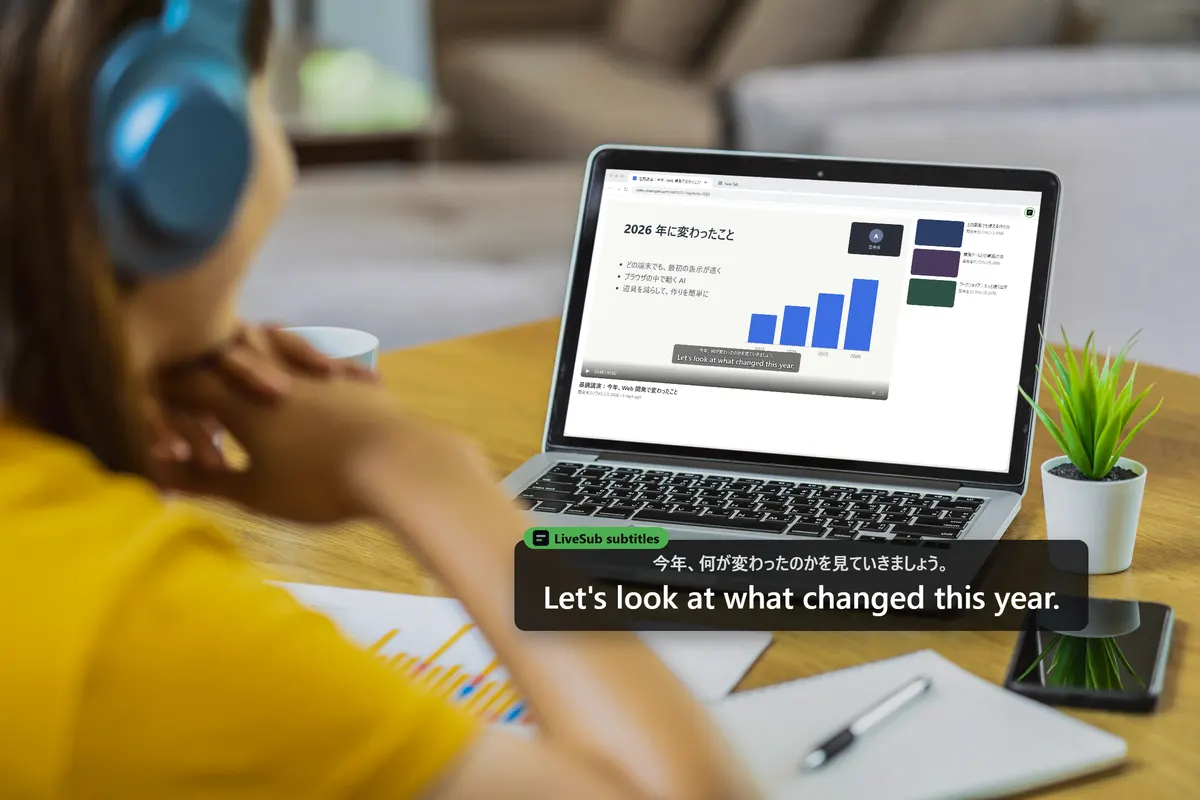
In short: auto-translate can only translate captions that already exist. If a video has none, you can make subtitles from the audio instead. LiveSub listens to the YouTube tab on your computer and shows the Japanese and an English translation as live subtitles, about one to two seconds behind the speaker. It works on videos without captions and on live streams. It is free.
Why auto-translate does not show up
YouTube's auto-translate translates the captions a video already has, either captions added by the uploader or ones generated automatically. So for some videos it cannot be used, for reasons like these:
- The video has no captions. If no automatic captions were made, there is nothing to translate from, and auto-translate may not be offered
- It is a live stream. On some streams, automatic captions do not appear, or appear late
- The uploader turned captions off. Viewers cannot turn them back on
- The audio is hard to hear. Loud music or several people talking at once can stop automatic captions from being made
None of these can be fixed from the viewer's side.
Make the subtitles from the audio
LiveSub is a website. Instead of reading YouTube's captions, it listens to the sound of the tab: you share the YouTube tab's audio with it, it recognises the Japanese speech on your own computer, and it translates it with the browser's built-in on-device translator. Whether the video has captions makes no difference.
Your audio is not uploaded anywhere. There is no account and no time limit.
What you need:
- Chrome or Microsoft Edge on a computer. In Firefox, LiveSub listens through a microphone or a loopback audio input (such as Windows Stereo Mix); on YouTube and Twitch, LiveSub for Firefox turns the video's audio into subtitles directly. Safari uses the same input method but is untested
- Not a phone or tablet. Mobile browsers cannot share tab audio. If you were watching in the YouTube app, open the same video on your computer
- A one-time download of the speech recognition model. For Japanese, the Balanced setting is about 590MB; after the first time, it is loaded from your browser's storage
Step by step
1. Open LiveSub and set the direction
Open LiveSub in a new tab. Under "Translate from / to", choose Japanese → English. Japanese uses a different recognition model, and if you leave it on English → Japanese you get garbled text instead of subtitles.
2. Press "Try the how-to video (no sharing)" first
Press "Try the how-to video (no sharing)". It plays a short how-to video in Japanese and shows subtitles without sharing any tab, so you can check that everything works on your computer. It also gets the one-time download out of the way.
3. Choose a recognition setting
Under "Recognition setting", Balanced keeps up with live streams and is the right start.
If your computer has a powerful GPU, Japanese-tuned mishears much less, especially in fast, casual speech. The first download is about 730MB, and it only appears when your browser can use the GPU. You can switch at any time, even while subtitles are running.
4. Share the YouTube tab
Press "Start (share a tab)". In Chrome's sharing dialog:
- Pick the "Chrome Tab" section at the top (not "Entire screen")
- Choose the tab with the YouTube video
- Tick "Also share tab audio" at the bottom left
- Press Share
If the checkbox is not ticked, only the picture is shared and no subtitles appear. This is the most common mistake.
5. Play the video
Go back to YouTube and press play. Subtitles appear about one to two seconds after the words are spoken.
If no sound arrives for about 12 seconds, LiveSub tells you. Check the video is playing and not muted, and if you shared the wrong tab, press "Share again".
6. Keep the video large
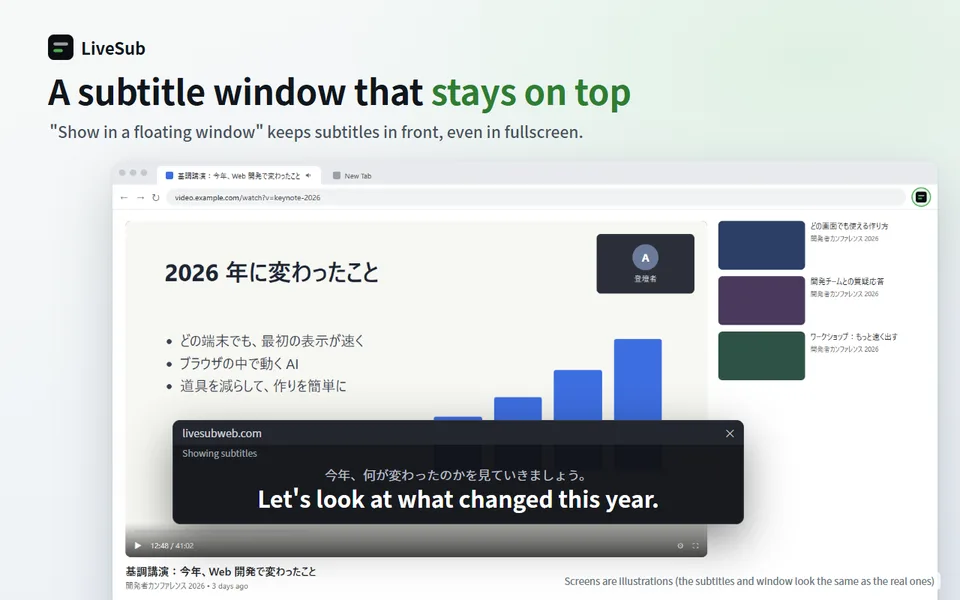
Press "Show in a floating window". The subtitles move into a small window that stays on top, so you can watch the video full screen and still read them.
Choosing "Window: subtitle bar" shows only the latest line in a wide strip, which you can place along the bottom of the video like ordinary subtitles.
Skip the sharing step with the extension
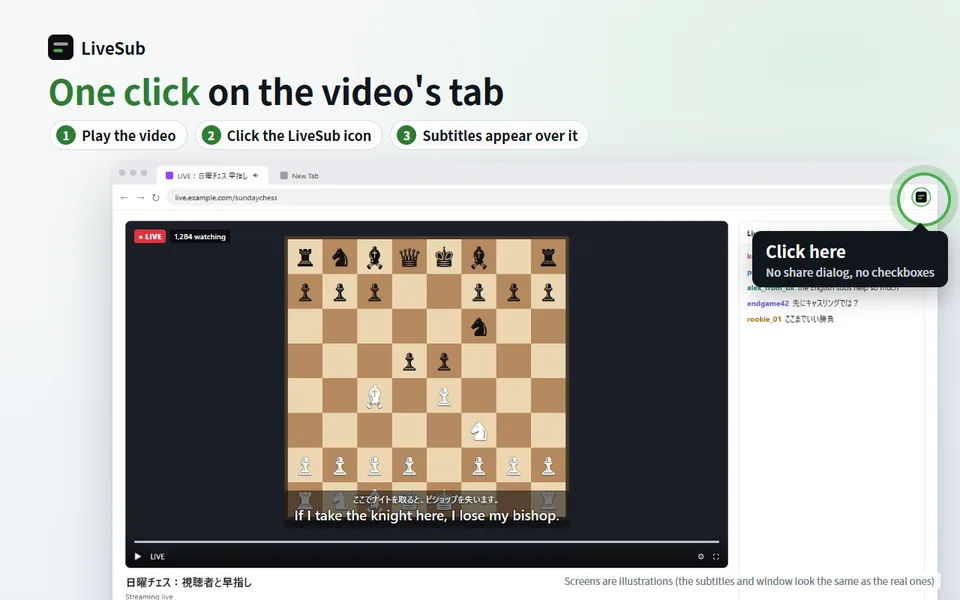
The free LiveSub extension for Chrome (it also installs in Microsoft Edge) puts the subtitles directly over the YouTube video: press its icon on the video's tab, and there is no sharing dialog and no checkbox.
Recognition runs in the LiveSub tab it opens, so keep that tab open while you watch.
Using Firefox? Firefox cannot share a tab's audio, so LiveSub listens through a microphone or an audio input instead. Open LiveSub in Firefox, play the video in another tab, and press "Start (mic or audio input)" on the LiveSub page. Allow microphone access when the browser asks. If your computer has a loopback input (such as Windows Stereo Mix), LiveSub picks it automatically; otherwise it listens through the microphone to the sound from your speakers (headphones will not work). There is no sharing dialog. On YouTube and Twitch, LiveSub for Firefox turns the video's audio into subtitles directly: press "Add to Firefox — it's free" to install it, play the video in another tab, and press "Start (YouTube / Twitch tab)"; the subtitles appear over the video.
Auto-translate and LiveSub compared
| YouTube auto-translate | LiveSub | |
|---|---|---|
| Videos without captions | Often not available | Works |
| Live streams | May not appear, or may lag | Works, about 1–2 seconds behind |
| Phones | Works | Computer only |
| Price | Free | Free |
When auto-translate is offered and good enough, use it. LiveSub is for the times it is not there.
Honest limits
- About one to two seconds of delay behind the audio
- It is machine translation. You get the gist; jokes and nuance often do not come through
- Names are the weak point. Add the correct spellings to "Word list", one per line (Japanese entries need at least 3 characters, English ones 4). It helps, but it is not perfect
- Loud music and overlapping voices reduce accuracy
- Only the audio is used. Text on screen and in the chat is not translated
- No time limit. Long live streams are fine
Wrapping up
A missing auto-translate option usually means the video has no captions to translate. LiveSub skips the captions and works from the audio, on recorded videos and live streams alike.
Open the Japanese video on your computer, then open LiveSub in another tab and press "Try the how-to video (no sharing)" first.
About this guide: written by the maker of LiveSub. Steps, button names and figures are checked against the LiveSub app as of the date above. If something is wrong, please tell us through the contact page.