 LiveSub
Live subtitles extension for Chrome and Edge: Japanese ⇄ English, free
Published: 2026-11-13
Works in Chrome or Edge on a computer (Firefox: through a microphone or audio input; the add-on covers YouTube and Twitch; not on phones). Japanese ⇄ English only.
You are watching a stream or a video in your browser, it has no captions, and you want subtitles while it plays, not after it ends.
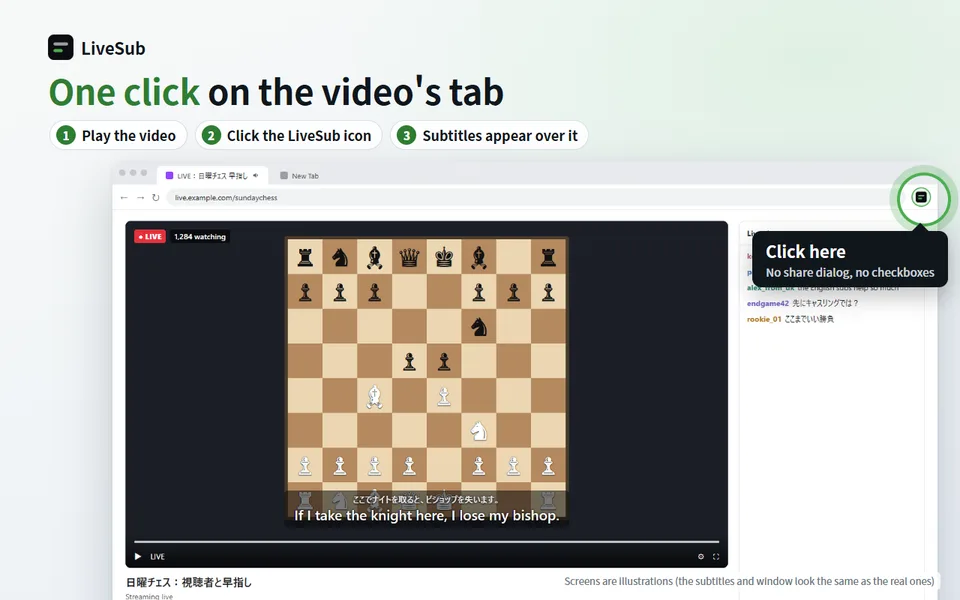
LiveSub is a free extension for Chrome and Microsoft Edge that makes them from the sound. Click its icon on the video's tab and live subtitles appear over the video, the original line and its translation, about one to two seconds after the words are spoken.
It works with English and Japanese only: English subtitles for Japanese audio, Japanese subtitles for English audio, or subtitles in the spoken language with no translation. Other languages are not supported.
What you'll learn
- What the extension does, how to install it in Chrome or Edge, and what happens on the first run
- Which permissions it asks for, and what happens to your audio
- How Chrome, Edge and the Firefox add-on (YouTube and Twitch) differ
In short: install LiveSub from the Chrome Web Store or from Microsoft Edge Add-ons, play a video in a tab, and click the LiveSub icon on that tab. The subtitles appear over the video, with no sharing dialog and nothing to tick. It is free, with no account and no time limit.
What the extension does
- Made from the audio. LiveSub listens to the tab's sound and writes the subtitles itself, so it works on live streams and on videos with no captions at all
- Most sites. Anything that plays video or audio in a tab, except pages where the browser does not allow extensions, such as browser settings pages and the browser's own extension store
The extension itself is small. It hands the tab's audio to a LiveSub page (livesubweb.com) that opens in another tab. That page does the speech recognition and translation on your own computer, and the extension shows the result over the video.
Keep the LiveSub tab open while you watch, because the subtitles are made there. You keep hearing the video as usual.
Install it
- Chrome: LiveSub on the Chrome Web Store
- Microsoft Edge: LiveSub on Microsoft Edge Add-ons
Both stores carry the same extension. Right after you install it, a LiveSub page opens with three short steps and a practice video.
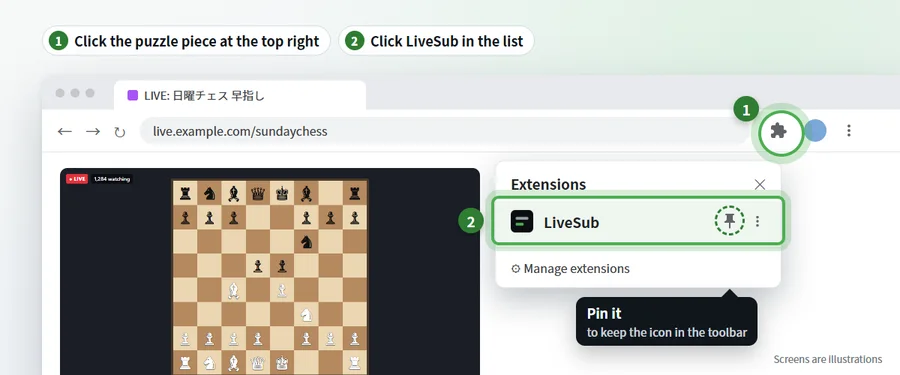
A newly installed extension's icon is tucked inside the puzzle-piece button, so pin it first:
- Chrome: click the puzzle-piece button at the top right, then the pin next to LiveSub
- Edge: click the Extensions button (puzzle piece) at the top right, then the eye icon next to LiveSub ("Show in toolbar")
The first run
1. Try the practice video
On the page that opened after installing, press "Open the practice video (about 2 min)". A practice video in Japanese opens on YouTube in another tab. Play it, then click the LiveSub icon on that tab. On a first visit in English, LiveSub starts on Japanese → English, so English subtitles appear over the video.
2. Wait for the one-time download
The first time, the speech recognition model is downloaded once: about 670MB for Japanese, about 400MB for English. The progress is shown over the video. On some computers (where recognition runs on the GPU and the GPU supports it), a translation model of about 570MB is also downloaded once.
3. Click the LiveSub tab once if it asks
If the video shows "Click the LiveSub tab once to start the subtitles and the sound", switch to the LiveSub tab, click anywhere on the page, and go back to the video.
4. Choose the direction for your own video
In the LiveSub tab, set "Translate from / to" to match the video: Japanese → English, English → Japanese, or one of the two "transcription (no translation)" options for subtitles in the spoken language. You can switch while subtitles are running.
Using it day to day
- Other ways to start. Press Alt+Shift+L (Option+Shift+L on a Mac; if that key is already in use, it is not assigned). Or right-click the page outside the video and choose "Show subtitles with LiveSub". On YouTube, right-clicking on the video itself opens YouTube's own menu
- Move the box. Drag the subtitles where you like, and drag the left or right edge to change the width. Both are remembered. Double-click puts the box back, and × hides it until you start again
- Icon badge. A green "ON" marks the tab that has subtitles. A red "!" means it could not start: reload the video tab and click the icon again
- One tab at a time. Click the icon on another tab and the subtitles move there
- To stop, press "Stop" in the LiveSub tab, or close that tab. Clicking the icon again on the same tab does not stop the subtitles
Permissions and what happens to your audio
- It reaches a page only when you start it there (icon, shortcut or right-click menu). It asks for no standing access to any site other than livesubweb.com, and its access to the video's tab ends when you close the tab or it moves to another site
- It captures a tab's audio only after one of those actions. Use the icon on the LiveSub tab itself and it resumes the tab you used last, if that tab is still open
- On the video's page, it only displays subtitle text. To place the box it looks at the position and size of the video or player, whether it is paused or in fullscreen, and whether the pointer moved over the video. It does not read page content, forms or browsing history
- It remembers where you put the subtitle box and the width you set, in your browser
- Your audio is not uploaded. Speech recognition and translation run on your computer, in the LiveSub tab, and the subtitles are not sent anywhere either
The LiveSub website counts anonymous usage and uses Google Analytics for page views of its own pages. Neither includes audio, recognised text or translations. The details are in the privacy policy.
How it differs by browser
| Browser | Where to get it | What it covers |
|---|---|---|
| Chrome | Chrome Web Store | Most sites that play sound in a tab |
| Microsoft Edge | Microsoft Edge Add-ons | The same as Chrome; the pin is an eye icon |
| Firefox | Firefox Add-ons, as a separate add-on | YouTube and Twitch videos only |
Using Firefox? LiveSub for Firefox is a separate add-on for YouTube and Twitch videos. Open LiveSub in Firefox, press "Add to Firefox — it's free", play a YouTube or Twitch video in another tab, and press "Start (YouTube / Twitch tab)" on the LiveSub page. On other sites, press "Start (mic or audio input)" and allow microphone access. LiveSub then listens through a loopback input (such as Windows Stereo Mix) if your computer has one, or through the microphone to the sound from your speakers (headphones will not work). There is no sharing dialog either way. Full steps: English subtitles for Japanese YouTube and Twitch in Firefox.
Safari uses the same microphone or audio input method but is untested. Other Chromium-based browsers, such as Brave and Opera, have not been tested with the extension.
Lost Edge's built-in video translation? See the free alternative.
Without installing anything
The extension is optional. LiveSub is also a website: open LiveSub in Chrome or Edge, press "Try it without installing", then "Start (share a tab)". In the browser's dialog, pick the "Chrome Tab" section (in Edge, the equivalent tab option), choose the video's tab, and tick "Also share tab audio" before you press Share. The subtitles then appear on the LiveSub page instead of over the video. If you forget the checkbox, LiveSub tells you right away; press "Start again" and tick it.
Not sure yet? Press "Try the how-to video (no sharing)" on the LiveSub page first. It shows subtitles without sharing a tab or installing anything, and it gets the one-time download out of the way.
Honest limits
- About one to two seconds of delay
- Speech recognition makes mistakes, especially with names. Add the correct spellings to the word list in the LiveSub tab, one per line (English entries need at least 4 characters, Japanese ones 3). To choose how a name appears in the translation too, write it as "たなか = Tanaka"
- Translation is machine translation. Names, slang and jokes can come out wrong
- Loud music, game sound and several people talking at once lower accuracy
- Only the audio is used. Chat and text on screen are not translated
- English and Japanese only
- Computer only. Phones and tablets are not supported
- For meetings and webinars, follow the organiser's rules
Wrapping up
Install it, pin it, play the video, click the icon. That is the whole routine, and the subtitles are made on your own computer.
Want to see it first? Open LiveSub on your computer and press "Try the how-to video (no sharing)".
About this guide: written by the maker of LiveSub. Steps, button names and figures are checked against the LiveSub app as of the date above. If something is wrong, please tell us through the contact page.