 LiveSub
How to make and share a word list that fixes names in live subtitles
Published: 2026-11-09
Works in Chrome or Edge on a computer (Firefox: through a microphone or audio input; the add-on covers YouTube and Twitch; not on phones). Japanese ⇄ English only.
Live subtitles on a Japanese stream tend to get the same things wrong every time: the streamer's name, their friends' names, and the words only that community uses. Fixing them is what LiveSub's word list is for.
This guide shows how to build a word list from scratch, check that it really improves the English, and share it as a single file so everyone watching the same streams gets the same fixes.
If you have not used the word list yet, start with Fix names and VTuber terms in live English subtitles. It covers where the list is and the one-click packs. This guide is the next step: making your own.
What you'll learn
- The four kinds of word-list lines, and which one to pick
- Which words help and which ones make things worse
- How to build a list on the word-list maker, test it with the real translator, and save it as a file
- How someone who receives the file adds it to their own LiveSub
In short: on the LiveSub page, open "Word list (fix misheard names, terms and their translations)" and press "Make your own list (new tab)". Write one word per row, pick a kind, check the result with "Try it on a real sentence", then press "Save as a file" to get one text file (.txt). Whoever receives it presses "Add from file" in their word list and picks the file.
The four kinds of lines
A word list is plain text with one entry per line. How you write the line decides what it does. On the word-list maker you never type the symbols: you pick a "Kind" and LiveSub builds the line for you.
| Kind | Line | What it does | Good for |
|---|---|---|---|
| Word only | LiveSub |
Fixes the spelling of what was heard | Names, product names |
| Translation only (→) | キルレ → K/D ratio |
Used only for the translation. Never touches the transcript | Everyday words, short words, slang |
| Both ways (=) | たなか = Tanaka |
Fixes the spelling of what was heard, and shows the other side in the translation. Works for Japanese and English audio | People's names |
| Also fix hearing (=>) | 凸待ち => call-in stream |
Only for audio in the language on the left: fixes the spelling and sets the translation | Community terms that don't look like everyday words |
| Fix a mishearing (←) | ユズハ ← ユズア、ユズワ |
Turns only the misheard forms on the right into the word on the left | A name or word misheard the same way every time |
If you are not sure, pick "Translation only (→)". It is what the maker selects for new rows. It only affects the translation, so it cannot rewrite everyday words in the transcript.
Lines that fix the spelling of what was heard (word only, both ways, also fix hearing) need at least 3 characters for Japanese and 4 for English. Shorter words still work as "Translation only".
"Fix a mishearing" leaves a match alone when more katakana follows or comes before it, so a longer katakana word that happens to contain the misheard form stays as it is.
What to put in, and what to leave out
The one-click packs in LiveSub were built by running every candidate word through Chrome's real translator and keeping only the ones that helped. Here is what that taught us.
Only add words that actually come out wrong
Check first. Adding a word the translator already handles can make the sentence worse. "高評価とチャンネル登録お願いします" (please like and subscribe) translates fine on its own, but with "高評価" added as a pair it became "Please subscribe to like and the channel".
Use "Translation only" for everyday words and short words
Lines that fix the spelling also fix forms that are almost the same, such as one character off. With short words or words that look like everyday words, that reaches into unrelated words.
- With "キルレ" set to fix the spelling, "聞き取れ" turned into "聞キルレ"
- With "リポップ" set to "Also fix hearing", the "リップ" inside "クリップボード" (clipboard) was rewritten too
Switching both to "Translation only (→)" kept the better translation and stopped the rewrites.
Names and fixed phrases work best
Names and phrases that never change shape work well. Verbs and words that change form ("〜した", "〜して") tend to break sentences, so leave them out.
Write every form of a name
If a name shows up in more than one form, add each form on its own line. Write English names with a capital letter: a capitalised entry never touches the same word heard in lower case.
When you add streamers' or viewers' names, use only the names they use publicly.
Put today's most frequent names in "Today's keywords"
Words in "Today's keywords (up to 3)", under the Start button, are given straight to speech recognition, so they are heard correctly in the first place instead of being fixed afterwards. This works with the Standard recognition for Japanese and English. Names you write in your own word list are given to recognition the same way.
Build the list on the word-list maker
- Open LiveSub on your computer and open "Word list (fix misheard names, terms and their translations)"
- Press "Make your own list (new tab)". The word-list maker opens in a new tab
- Under "Header", fill in what the list is for, who made it (optional), the date and a version. These notes go at the top of the file and are not used for translation
- Under "Words and translations", write the "Original word", pick a "Kind" and write the "Word to show in the translation" on each row. "Result" shows the exact line that goes into the file
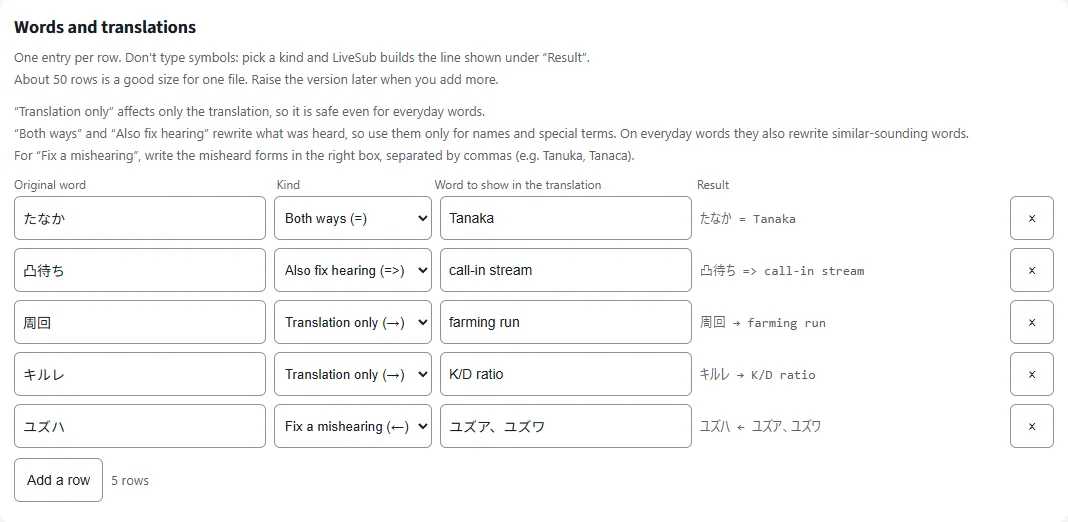
A row gets a warning when both sides are in the same language, or when the word is too short to fix the spelling. Press "Add a row" for more rows. About 50 rows is a good size for one file.
Your rows are kept in this browser, so you can close the tab and carry on later.
Try it on a real sentence
At the bottom, "Try it on a real sentence" lets you type a line you expect to hear and press "Try". It shows how your rows change the transcript and the translation. The translation comes from the on-device translator in this Chrome or Edge, the same one the subtitles use.
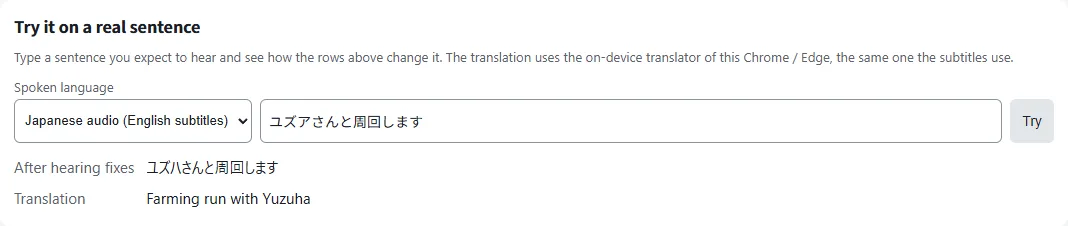
With the five sample rows, Chrome's on-device translator gave these results on 9 November 2026:
| Japanese line | Without a word list | With the five sample rows |
|---|---|---|
| 明日は凸待ちをやります | Tomorrow, I'll do a convex wait | I'll do call-in stream tomorrow |
| キルレが上がってきた | Kirle has risen | K/D ratio has risen |
| ユズアさんと周回します | I'll go around with Yuzua-san | Farming run with Yuzuha |
| たなかさんのキルレが高い | Tanaka-san's killer is high | Tanaka's K/D ratio is expensive |
The last line shows the limit: the words you listed come out right, but the translator can still misread the words around them ("高い" here means high, not expensive). A word list fixes individual words. Try a few lines you expect to hear before you share it.
In a browser without Chrome's or Edge's on-device translator, you can only see the transcript fixes, not the translation.
Save it as a file and share it
Press "Save as a file" and one text file downloads. The file is made on your computer only and is never sent to LiveSub.
To use the list yourself as well, press "Add to my word list". The rows go into the same word list the subtitle page uses, and an open subtitle tab picks them up from the next sentence.
Share the file in a video description, on Discord, or wherever your community gathers. It is plain text, so you can open it in any text editor. The five sample rows look like this:
# LiveSub 用語集
# Word list: Survival game stream terms
# Date: 2026-11-09
# Version: 1

たなか = Tanaka
凸待ち => call-in stream
周回 → farming run
キルレ → K/D ratio
ユズハ ← ユズア、ユズワ
Lines starting with "#" are the header and are not used for translation. A file you write by hand in this shape can be added too.
Adding words later
When you have more words, open the old file with "Open a file", add rows, raise the version and save again. When people use "Add from file" with the new file, only the words they do not have yet are added.
If your list ends up split across several files, open them all with "Open a file" and press "Save as a file" once to get a single file.
Adding a file someone shared
- Open LiveSub on your computer and open "Word list (fix misheard names, terms and their translations)"
- Press "Add from file" and choose the .txt file
The entries are added to your list and saved, and they apply from the next sentence. Words you already have are not added again, so they stay the way you wrote them. One file can have up to 1,000 lines and 256KB.
To give your own list to someone, press "Save to file". It saves your current word list as a file in the same format.
The word list only shows up after you have used LiveSub once. On your first visit LiveSub shows an introduction instead, so press "Try the how-to video (no sharing)" first, as described below.
Before you start: getting subtitles on the stream
- Chrome or Microsoft Edge on a computer. In Firefox, LiveSub listens through a microphone or a loopback audio input (such as Windows Stereo Mix); on YouTube and Twitch, LiveSub for Firefox turns the video's audio into subtitles directly. Safari uses the same input method but is untested
- A computer. Phones cannot share tab audio, so this does not work on mobile
To check everything works first, choose "Japanese → English" and press "Try the how-to video (no sharing)". It shows subtitles on a short video without sharing anything, and it gets the one-time download of the recognition model out of the way.
Then, with the stream open in another tab:
- Press "Start (share a tab)"
- In Chrome's dialog, choose the "Chrome Tab" section and the tab playing the stream
- Tick "Also share tab audio" at the bottom left, then press Share
Using Firefox? Firefox cannot share a tab's audio, so LiveSub listens through a microphone or an audio input instead. Open LiveSub in Firefox, play the video in another tab, and press "Start (mic or audio input)". Allow microphone access when asked. If your computer has a loopback input (such as Windows Stereo Mix), LiveSub picks it automatically; otherwise it listens through the microphone to the sound from your speakers (headphones will not work). There is no sharing dialog. On YouTube and Twitch, LiveSub for Firefox turns the video's audio into subtitles directly: press "Add to Firefox — it's free" to install it, play the video in another tab, and press "Start (YouTube / Twitch tab)". The word list works the same way in all of these.
What a word list cannot do
- A badly heard sentence will not come back. A word list fixes individual words
- The English around a fixed word can be stiff or wrong, as in "Tanaka's K/D ratio is expensive" above
- It does not change the jokes, wordplay or tone. It is still machine translation, and there is about a one to two second delay
- Loud music and several people talking at once still reduce accuracy, list or no list
- On-screen text is not translated. LiveSub only works with what it hears
Wrapping up
A word list is just text, one entry per line. When in doubt, use "Translation only (→)", add only the words that come out wrong, and check them with "Try it on a real sentence" before you share. When everyone watching the same streams uses the same file, the same names and terms come out right for all of them.
Open LiveSub and press "Make your own list (new tab)" in the word list to get started.
About this guide: written by the maker of LiveSub. Steps, button names and figures are checked against the LiveSub app as of the date above. If something is wrong, please tell us through the contact page.