 LiveSub
Live subtitles for any video or stream in your browser (free)
Published: 2026-11-02 ・ Updated: 2026-11-03
Works in Chrome or Edge on a computer (Firefox: through a microphone or audio input; the add-on covers YouTube and Twitch; not on phones). Japanese ⇄ English only.
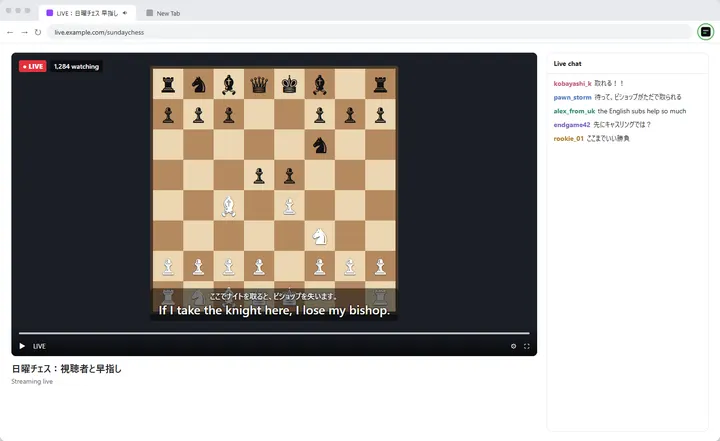
Plenty of videos and streams have no subtitles while they are live. Automatic captions may not be offered, or may only appear after the stream has ended.
This guide shows how to get live subtitles on anything playing in a browser tab, for free, with no sign-up and no install.
LiveSub works with English and Japanese. It can show what is being said, or translate it between the two. Other languages are not supported.
What you'll learn
- How to put live subtitles on any video or stream in your browser
- Which setting to choose for subtitles with or without translation
- What works well, and what does not
In short: add the free LiveSub extension for Chrome or Edge on your computer, press its icon on the video's tab, and choose the language under “Translate from / to” in the LiveSub tab that opens. Subtitles appear over the video about one to two seconds behind the speaker, with no sharing dialog. Without the extension, open LiveSub in another tab and share the video's tab instead.
What you need and how it works
- Chrome or Microsoft Edge on a computer. In Firefox, LiveSub listens through a microphone or a loopback audio input (such as Windows Stereo Mix); on YouTube and Twitch, LiveSub for Firefox turns the video's audio into subtitles directly. Safari uses the same input method but is untested
- Not a phone or tablet. Mobile browsers cannot share tab audio
- A one-time download of the speech recognition model. On the Balanced setting, it is about 400MB for English and about 670MB for Japanese. After the first time, it is loaded from your browser's storage
No account and no payment.
Using Firefox? Firefox cannot share a tab's audio, so LiveSub listens through a microphone or an audio input instead. Open LiveSub in Firefox, play the video in another tab, and press "Start (mic or audio input)" on the LiveSub page. Allow microphone access when the browser asks. If your computer has a loopback input (such as Windows Stereo Mix), LiveSub picks it automatically; otherwise it listens through the microphone to the sound from your speakers (headphones will not work). There is no sharing dialog. On YouTube and Twitch, LiveSub for Firefox turns the video's audio into subtitles directly: press "Add to Firefox — it's free" to install it, play the video in another tab, and press "Start (YouTube / Twitch tab)"; the subtitles appear over the video.
LiveSub is a website. You share one browser tab's audio with it, and it recognises the speech on your own computer, inside the browser. Your audio is not uploaded anywhere. Because the speech recognition runs on your computer, there is no per-minute limit and no list of supported sites. It does not rely on the site's own captions, so videos with no captions work too.
Step by step
- Open the video or stream in Chrome
- In another tab, open LiveSub
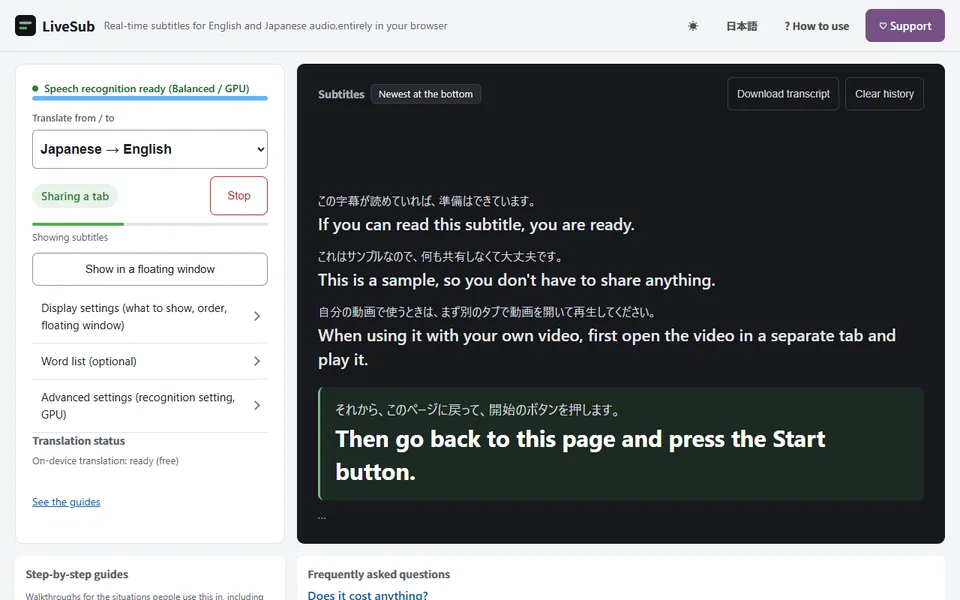
- Under "Translate from / to", choose what you want (see the table below)
- Press "Try the how-to video (no sharing)" once. It shows subtitles without sharing any tab, and it gets the one-time download out of the way
- Click "Start (share a tab)"
- In Chrome's dialog, pick the "Chrome Tab" section, choose the tab playing the video, and tick "Also share tab audio" at the bottom left. Then click Share
Play the video. Subtitles appear about one to two seconds after the words are spoken.
If nothing appears, it is almost always the audio checkbox in step 6. Press "Share again" and tick it.
If you would rather not use the sharing dialog, the free extension ("Add to Chrome — it's free") starts subtitles from a button in the toolbar and shows them over the video. It is optional.
Which option to choose
| The video is in | You want | Choose |
|---|---|---|
| English | English subtitles | English transcription (no translation) |
| English | Japanese subtitles | English → Japanese |
| Japanese | English subtitles | Japanese → English |
| Japanese | Japanese subtitles | Japanese transcription (no translation) |
Under "Recognition setting", leave it on Balanced. If subtitles fall behind, choose Lighter. You can switch while the video is running.
What works well, and what does not
- One clear speaker at a time. News, talks, lectures and most commentary are the best case
- Live streams and meetings. They work the same way as recorded video, as long as the sound plays in a browser tab
- Loud music and game sound. These reduce accuracy
- Several people talking at once. Lines can run together, and accuracy drops
- Singing. Do not expect much here
Making it comfortable to watch
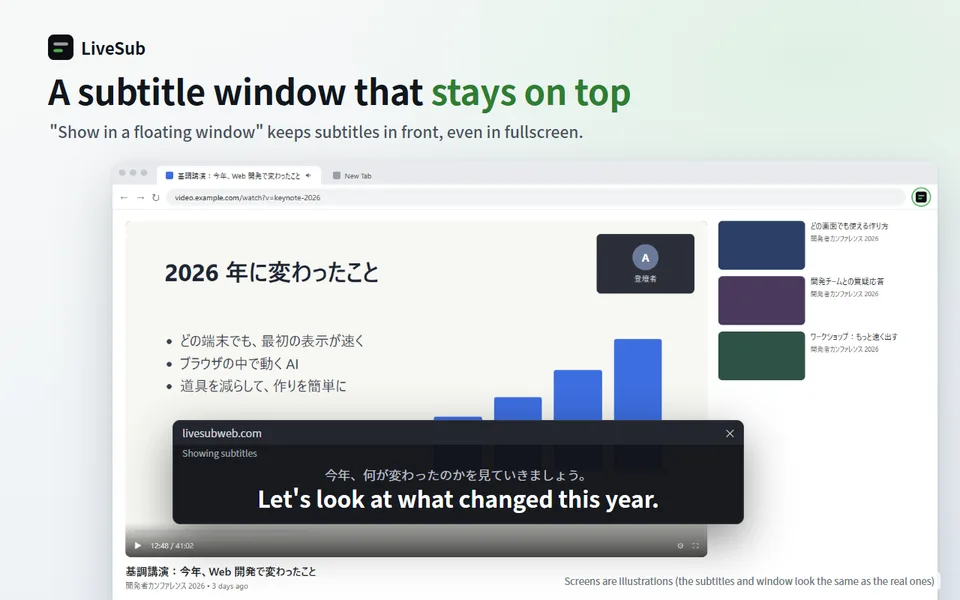
Click "Show in a floating window" to move the subtitles into a small window that stays on top, so you can watch in fullscreen and still read them.
Recognition often gets names wrong. Add the correct spellings to the word list, one per line (English entries need at least 4 characters), and they will be corrected automatically. To choose how a name appears in the translation too, write it as "たなか = Tanaka".
"Download transcript" saves what was said, with timestamps, as a text file.
Honest limits
- About one to two seconds of delay. The subtitles follow the speaker; they do not appear at the same moment
- Speech recognition makes mistakes, especially with names, background music and overlapping voices
- Translation is machine translation. You get the gist; jokes and nuance often do not survive
- Only the audio is used. Text on screen and chat are not read
- English and Japanese only
- Computer only. It needs Chrome or Edge on a desktop or laptop (Firefox: through a microphone or audio input)
- For meetings and webinars, follow the organiser's rules
Wrapping up
If it plays sound in a browser tab, LiveSub can put live subtitles on it, with no per-minute limit and no list of supported sites.
Open the video you want to watch, then open LiveSub on your computer and press "Try the how-to video (no sharing)" first.
About this guide: written by the maker of LiveSub. Steps, button names and figures are checked against the LiveSub app as of the date above. If something is wrong, please tell us through the contact page.