 LiveSub
English subtitles for Japanese YouTube and Twitch streams in Firefox (free add-on)
Published: 2026-10-27
Works in Chrome or Edge on a computer (Firefox: through a microphone or audio input; not on phones). Japanese ⇄ English only.
Look for a way to get English subtitles on a Japanese stream and most tools say "Chrome only". If you watch YouTube or Twitch in Firefox, that usually means switching browsers.
This guide shows how to get live English subtitles on Japanese YouTube videos and Twitch streams without leaving Firefox: VTuber streams, game streams, chatting streams and archives, even ones with no captions at all.
What you'll learn
- How to get English subtitles on YouTube and Twitch in Firefox with LiveSub for Firefox (a free add-on)
- What to do on other sites and in meetings
- What to expect from the subtitles
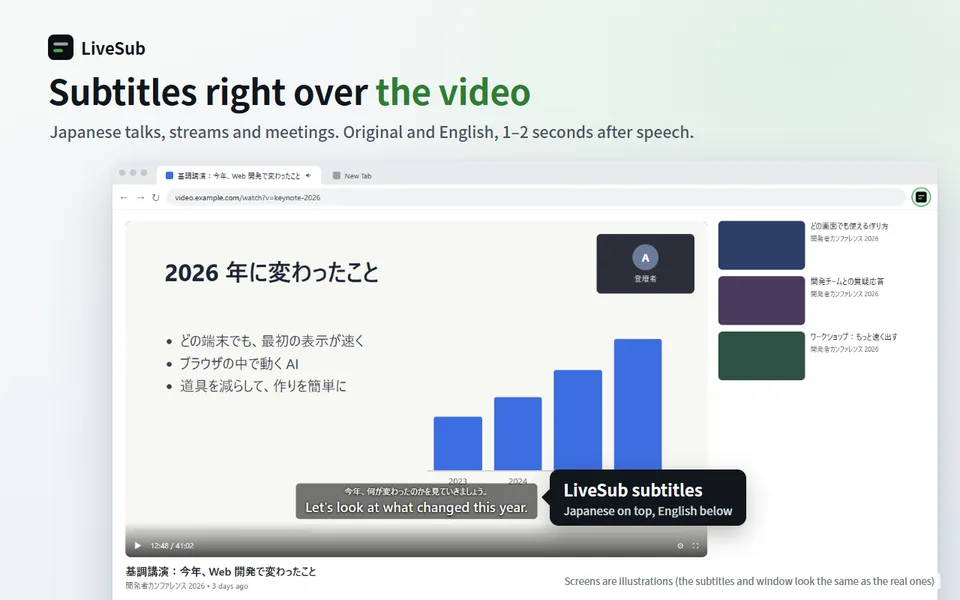
In short: open LiveSub in Firefox, press "Add to Firefox — it's free", and choose Japanese → English. Play a YouTube or Twitch video in another tab, then press "Start (YouTube / Twitch tab)" on the LiveSub page. The Japanese and the English appear over the video about one to two seconds behind. No sharing dialog, no microphone, no account.
Why most subtitle tools skip Firefox on YouTube
Tools that turn a video's sound into subtitles usually rely on Chrome's "share tab audio" feature. Firefox has no way to hand one tab's audio to another, so those tools do not work on YouTube in Firefox.
LiveSub for Firefox takes the sound straight from the video on YouTube and Twitch pages instead. That is why YouTube and Twitch videos in Firefox can get subtitles, with or without captions on the video.
What you need
- Firefox on a computer (LiveSub for Firefox works on YouTube and Twitch videos). Keep Firefox up to date
- Not a phone or tablet
- A one-time download of the speech recognition model (for Japanese, about 590MB on the Balanced setting) and the translation model (Japanese → English, about 70MB). On a computer with a GPU, it also downloads a translation model that is better with casual stream talk (about 300MB) and switches to it once it is ready. After the first time, they are loaded from your browser's storage
Your audio is never uploaded anywhere. Recognition and translation both run on your own computer.
Step by step
1. Add LiveSub for Firefox (for YouTube and Twitch)
Open LiveSub in Firefox and press "Add to Firefox — it's free". The Firefox Add-ons page opens; add it from there. It is the add-on for YouTube and Twitch videos.
2. Choose Japanese → English and check it works
Under "Translate from / to", choose Japanese → English. If you leave it on English → Japanese, you get garbled text instead of subtitles.
Then press "Open the practice video (about 2 min)". A practice video opens on YouTube in another tab; play it, come back and press "Start (YouTube / Twitch tab)" to see the subtitles. This also gets the one-time download out of the way, so do it before the stream you want to watch goes live.
3. Play the stream in another tab and press Start
Play the YouTube video or Twitch stream in another tab. Back on the LiveSub page, press "Start (YouTube / Twitch tab)".
LiveSub for Firefox picks the YouTube or Twitch tab that is playing sound. When the streamer talks, the Japanese and the English appear over the video about one to two seconds later, and the same lines appear in the LiveSub tab. Keep the LiveSub tab open while you watch.
You can also start from the video's tab by pressing the LiveSub icon in the toolbar (or Alt+Shift+L). Right after you add it, the icon may be tucked inside the puzzle-piece button.
Other sites and meetings
LiveSub for Firefox takes the sound directly only from YouTube and Twitch videos. For other video sites, webinars and meetings, Firefox can still use LiveSub through a microphone or audio input, with or without the add-on:
- Play the video or join the meeting in another tab
- Press "Start (mic or audio input)" on the LiveSub page (if you open LiveSub for the first time before adding the add-on, press "Try it without installing" on the intro page that opens first)
- Allow microphone access when the browser asks
If your computer has a loopback input (such as Windows Stereo Mix), LiveSub picks it automatically; otherwise it listens through the microphone to the sound from your speakers (headphones will not work). There is no sharing dialog. With a microphone, room noise and your own voice get picked up too.
Tips for Japanese streams
- Add names to the word list. Open "Word list" and add the streamer's name, game titles and running jokes, one per line (Japanese entries need at least 3 characters, English ones 4)
- One speaker at a time works best. Collabs with overlapping voices, loud music and sound effects reduce accuracy
- Long streams are fine. There is no time limit, and "Download transcript" saves the whole session with timestamps
Honest limits
- About one to two seconds of delay. This is not simultaneous interpretation
- It is machine translation. Firefox has no built-in translator like Chrome's, so on YouTube, Twitch and the microphone input alike LiveSub translates with Mozilla's on-device translation models. The wording can differ a little from what you would get in Chrome; slang, jokes and wordplay often do not survive
- The Japanese can be misheard too, especially names. The word list helps, but it is not perfect
- Chat and on-screen text are not translated. Only the audio is
- Computer only. Phones are not supported
Wrapping up
You do not need to switch browsers to follow a Japanese stream. In Firefox, LiveSub for Firefox puts English subtitles over YouTube and Twitch videos. Other sites and meetings work in Firefox through a microphone or audio input (or, in Chrome or Edge, straight from the tab's sound).
Open LiveSub in Firefox and press "Add to Firefox — it's free" to get started with YouTube and Twitch.
About this guide: written by the maker of LiveSub. Steps, button names and figures are checked against the LiveSub app as of the date above. If something is wrong, please tell us through the contact page.