 LiveSub
Fix names and VTuber terms in live English subtitles (word list)
Published: 2026-10-30 ・ Updated: 2026-11-01
Works in Chrome or Edge on a computer (Firefox: through a microphone or audio input; the add-on covers YouTube and Twitch; not on phones). Japanese ⇄ English only.
Live subtitles on a Japanese stream get the everyday talk right surprisingly often. What they get wrong are the words you care about most: the streamer's name, their friends' names, and the vocabulary that only fans use.
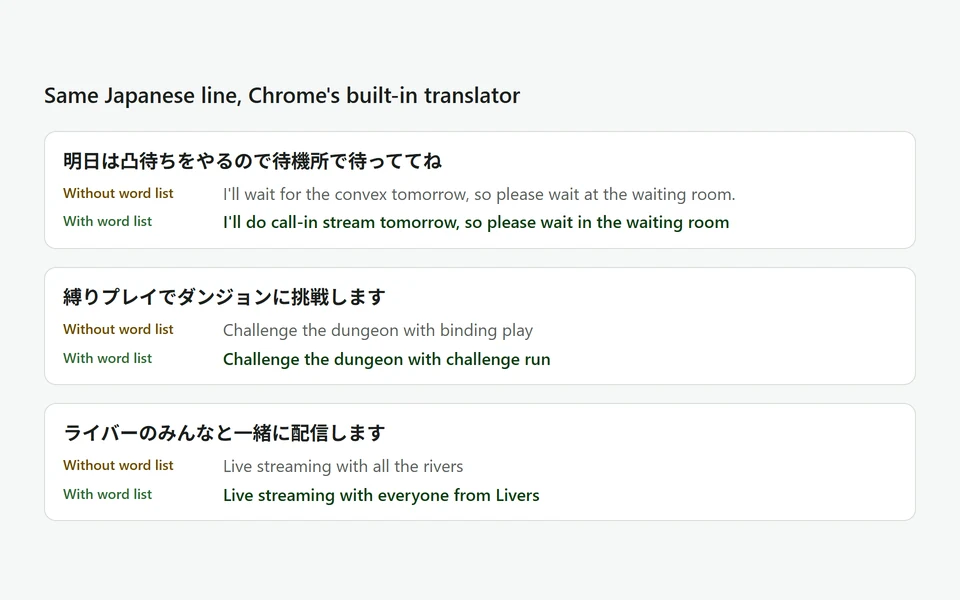
Machine translation has never heard of a "凸待ち" stream, so it guesses. When we ran it through Chrome's built-in translator, "明日は凸待ちをやるので" came out as "I'll wait for the convex tomorrow". With LiveSub's word list, the same line came out as "I'll do call-in stream tomorrow".
This guide shows how to set up the word list in a couple of minutes, even if you cannot type Japanese.
What you'll learn
- What the word list fixes, and what it does not
- How to add a whole set of VTuber, game, anime or music terms with one click
- How to add the names of the people you watch, with the English spelling you want
In short: on the LiveSub page, open "Word list (optional)", press a button under "Add common words for:", then add each name on its own line as Japanese name = English name. Your list is saved in your browser and works from the next line.
What the word list does
The word list does two different things, and it helps to know which is which.
- It fixes the spelling of what LiveSub hears. Speech recognition mishears names and rare words. Put a word on its own line, and close misspellings of it are corrected to your spelling in the original-language line. Japanese entries need at least 3 characters, English entries at least 4
- It fixes how a word appears in the English. Write a line as
Japanese = English, for exampleたなか = Tanaka. The Japanese side is used to correct what LiveSub hears, and the English side is what appears in the translation
A line without = only does the first thing. It makes the Japanese line right, but the translator may still turn a name into an ordinary word or spell it differently each time. If you care about the English, write the pair.
You can write the pair either way round (Tanaka = たなか works too), and a full-width = is fine.
To fix only the translation, write → instead of = (キルレ → K/D ratio). Such a line does only the second thing and never touches what LiveSub hears. Use it for short words or words that are one or two letters away from everyday speech, where correcting the hearing could change ordinary phrases.
How close is "close"?
LiveSub only corrects forms that are almost the same as your entry:
- the same word written in hiragana instead of katakana, or the other way round (
そらねandソラネ) - a word with one character different (one character in up to seven, two in longer entries)
It deliberately leaves everyday speech alone. If you add コラボ配信, the streamer saying "コラボしてみたい" ("I want to collab") is not turned into your entry, and an entry like みらい does not touch "みたいな" ("like"). We tightened these rules on 30 October 2026 after testing the word list on the auto-generated captions of real Japanese stream clips, where the older, looser matching had changed ordinary phrases.
How a pair changes the translation
When a line contains a name from a pair, LiveSub first translates it as usual. If the name already comes out the way you wrote it, that translation is used as it is. Only when the translator turns the name into something else does LiveSub put your spelling in. In our tests, ゆうひ = Yuhi turned "Yuuhi" into "Yuhi", while a line where the name was already right stayed word for word the same.
Where to find it
- Open LiveSub on your computer
- Under "Translate from / to", choose "Japanese → English"
- Open "Word list (optional)", just below "Display settings (what to show, order, floating window)"
- Type your entries, one per line, and press "Save word list"
If this is your first visit, LiveSub shows a short introduction instead of the settings. Press "Try the how-to video (no sharing)" or start subtitles once, and the settings, including the word list, appear from then on.
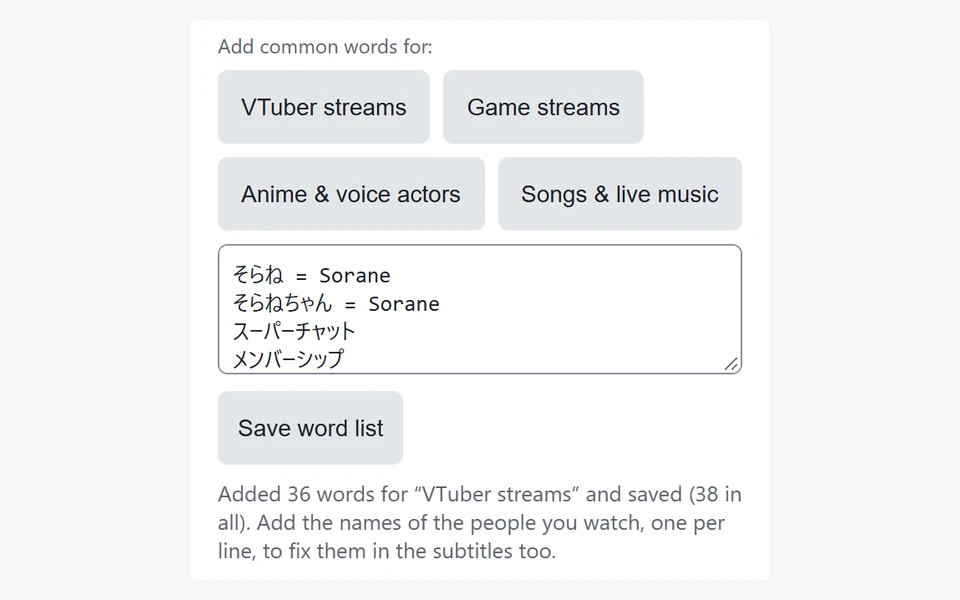
The list is kept in your browser on this computer. It is not uploaded anywhere, and it is still there next time you open LiveSub.
If you start subtitles with an extension, the recognition still runs in the LiveSub tab, and that is where the word list lives. This is the same for the Chrome and Edge extension (pressing the LiveSub icon on the video's tab) and for LiveSub for Firefox (on YouTube and Twitch, pressing "Start (YouTube / Twitch tab)" on the LiveSub page). Keep the LiveSub tab open and edit the list there.
You can change the list while subtitles are running. It applies from the next line.
One-click packs
You do not have to build a list from scratch. With "Japanese → English" (or "Japanese transcription (no translation)") selected, these buttons appear under "Add common words for:":
- "VTuber streams": stream types and fan vocabulary, with the English that fans actually use (karaoke stream, collab stream, call-in stream, oshi mark, teetee, red Super Chat, sponsored stream, watch-along, Super Chat reading), plus the names of some large VTuber agencies in their English spelling
- "Game streams": words like cooldown, blind playthrough, challenge run, boss fight, camping, flanking, wallbang, hitbox, aggro, drop rate and soulslike
- "Anime & voice actors": words like voice recording, season 2, isekai, slice of life, ship, fan works and anime pilgrimage
- "Songs & live music": words like song cover, solo concert, original song and hook intro
Every pair in these packs was checked one by one against Chrome's built-in translator on 30 October 2026, and only words the translator gets wrong on its own are included. Without the pack, 「芋ってる奴がいる」 came out as "There's a guy with potatoes" and 「排出率は三パーセント」 as "Emission rate is 3%"; with it, they read "There's a camping guy" and "Drop rate is 3%". Words the translator already handles (スーパーチャット, ラスボス) are left as plain entries, because forcing a pair on them can break the sentence.
When you choose English audio instead ("English → Japanese"), the buttons are "Game streams", "Meetings", "Tech shows" and "News".
Press one and its words are added to your list and saved. Words you already have are skipped, so pressing it twice does no harm.
We only attach an English spelling where the translator actually got the meaning wrong in our tests. Words it already translates well, such as スーパーチャット (Super Chat) or 高評価 (like), are left as plain entries, because forcing them made the English sentence clumsier.
The packs do not contain any streamer's name. Those you add yourself, which is the next section, and it is the part that makes the biggest difference.
Adding the names of the people you watch
You do not need a Japanese keyboard for this.
- Open the streamer's channel page or the stream title. Most Japanese streamers write their name there in Japanese
- Copy the Japanese name and paste it into the word list
- After it, type
=and the spelling you want in the subtitles, for exampleそらね = Sorane - Press "Save word list"
A few tips that help:
- Add the forms you actually hear. If chat and the streamer use a nickname, add it on its own line too, with the same English (
そらねちゃん = Sorane) - Add both the kanji and the kana form. The word list treats hiragana and katakana as the same, but it cannot read kanji. If a name is written in kanji on the channel page but LiveSub shows it in kana (or the other way round), add both lines with the same English, for example
空音 = Soraneandそらね = Sorane - Very short names need a longer form. A Japanese entry needs 3 characters, so a two-character name will not work on its own. Add the full name, or the name with the suffix people use
- Add friends and collab partners before a collab stream. Two minutes before the stream saves you an hour of guessing who is speaking
- Keep the list to what you watch. The word list leaves everyday phrasing alone, but every entry is one more chance of a near miss. If you ever notice an ordinary word being turned into one of your entries, delete that entry
Before you start: getting subtitles on the stream
- Chrome or Microsoft Edge on a computer. In Firefox, LiveSub listens through a microphone or a loopback audio input (such as Windows Stereo Mix); on YouTube and Twitch, LiveSub for Firefox turns the video's audio into subtitles directly. Safari uses the same input method but is untested
- A computer. Phones cannot share tab audio, so this does not work on mobile
To check everything works first, choose "Japanese → English" and press "Try the how-to video (no sharing)". It shows subtitles on a short video without sharing anything, and it gets the one-time download of the recognition model out of the way.
Then, with the stream open in another tab:
- Press "Start (share a tab)"
- In Chrome's dialog, choose the "Chrome Tab" section and the tab playing the stream
- Tick "Also share tab audio" at the bottom left, then press Share
If nothing appears, it is almost always the audio checkbox.
Using Firefox? Firefox cannot share a tab's audio, so LiveSub listens through a microphone or an audio input instead. Open LiveSub in Firefox, play the video in another tab, and press "Start (mic or audio input)". Allow microphone access when asked. If your computer has a loopback input (such as Windows Stereo Mix), LiveSub picks it automatically; otherwise it listens through the microphone to the sound from your speakers (headphones will not work). There is no sharing dialog. On YouTube and Twitch, LiveSub for Firefox turns the video's audio into subtitles directly: press "Add to Firefox — it's free" to install it, play the video in another tab, and press "Start (YouTube / Twitch tab)". The word list works the same way in all of these.
What the word list cannot do
- It cannot fix everything. It only corrects forms that are almost the same as your entries. A name the recognition hears as something completely different, or writes in kanji when you entered kana, will still come out wrong
- The English around a replaced word can be a little stiff. When LiveSub has to put your spelling in, the word itself comes out right, but the sentence may read like "make more and more clip" instead of "clips"
- It does not change the jokes, wordplay or tone. It is still machine translation, and there is about a one to two second delay
- Loud music and several people talking at once still reduce accuracy, list or no list
- On-screen text is not translated. LiveSub only works with what it hears
Wrapping up
The word list is the quickest way to make live subtitles feel like they were made for the streams you watch. Press the pack for what you watch, add the names you care about as Japanese = English, and you are set for every stream after that.
Open LiveSub and press "Try the how-to video (no sharing)" to try it.
About this guide: written by the maker of LiveSub. Steps, button names and figures are checked against the LiveSub app as of the date above. If something is wrong, please tell us through the contact page.