 LiveSub
How to transcribe a YouTube or Twitch live stream for free (SRT/VTT)
Published: 2026-11-09
Works in Chrome or Edge on a computer (Firefox: through a microphone or audio input; the add-on covers YouTube and Twitch; not on phones). Japanese ⇄ English only.
You want to follow a live stream in text, catch the sentence you just missed, or keep a record of your own stream. Or you are listening to an English talk or podcast and want to read along in English, with no translation in the way.
This guide shows how to transcribe the sound playing in a browser tab as it plays, with no translation, and save it with timestamps. You do not have to wait for the stream to end; the words appear while people are still talking.
What you'll learn
- How to transcribe a YouTube or Twitch live stream or video without translating it
- How to save the transcript as text (.txt) or as a subtitle file (.srt / .vtt)
- How to paste the transcript into an AI chat for a summary or a vocabulary list
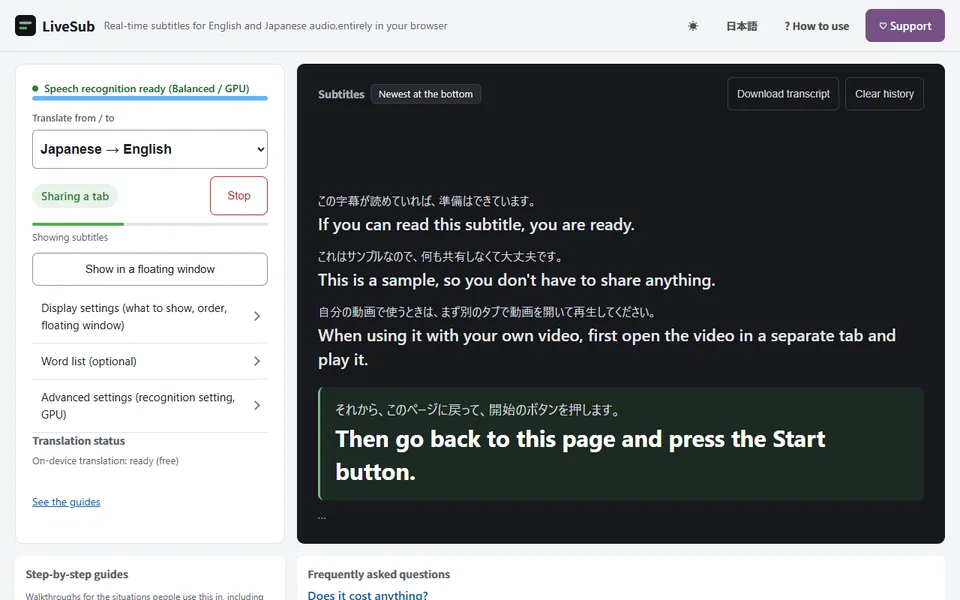
In short: open LiveSub in another tab and, under "Translate from / to", choose "English transcription (no translation)" or "Japanese transcription (no translation)". Press "Start (share a tab)", pick the stream's tab, and the words appear as subtitles exactly as they are heard. When you are done, "Download transcript" saves them with timestamps. Chrome or Edge on a computer, free, no account.
What it is good for
- Following a live stream in text. Scroll back through the subtitle list to read what was said while you were away or what you did not catch
- Reading an English talk or podcast in English. Only the original words appear, with no translation, so you can check your listening or review afterwards
- Keeping a transcript of your own stream. Share your stream's tab and you have a timestamped transcript when it ends
- Handing the transcript to an AI. "Copy transcript" puts it on the clipboard; paste it into an AI chat and ask for a summary or a list of words you did not know
How LiveSub works
LiveSub is a website. It runs when you open it; there is nothing to install and no account.
It receives only the audio of one browser tab through the browser's tab-sharing feature and recognises the speech on your own computer. Whether the stream has captions does not matter, so it works on videos with no captions and on live streams.
Normally LiveSub translates what it hears into English or Japanese. Choose "English transcription (no translation)" or "Japanese transcription (no translation)" under "Translate from / to" and it skips translation and shows the words just as they were heard.
Your audio is never uploaded anywhere. Recognition runs inside your browser.
What you need
- Chrome or Microsoft Edge on a computer. In Firefox, LiveSub listens through a microphone or a loopback audio input (such as Windows Stereo Mix); on YouTube and Twitch, LiveSub for Firefox turns the video's audio into subtitles directly. Safari uses the same input method but is untested
- Not a phone or tablet. Mobile browsers cannot share tab audio
- A one-time download of the speech recognition model (on the Balanced setting, about 400MB for English and about 670MB for Japanese). After the first time, it is loaded from your browser's storage
Step by step
1. Open LiveSub in another tab and choose the direction
Open LiveSub in a new tab. Under "Translate from / to", choose "English transcription (no translation)" for an English stream or "Japanese transcription (no translation)" for a Japanese one.
There are links that open LiveSub already set to that direction: English transcription and Japanese transcription.
Leave "Recognition setting" on Balanced.
2. Press "Try the how-to video (no sharing)"
The first time, press "Try the how-to video (no sharing)". It plays a short how-to video without sharing any tab, so you can see the transcript appear, and it gets the one-time download out of the way. Do it before the stream goes live and you will not be waiting when it matters.
3. Press "Start (share a tab)"
Chrome's sharing dialog opens. This is where most people get stuck.
- Pick the "Chrome Tab" section at the top (not "Entire Screen")
- Choose the tab with the stream
- Make sure "Also share tab audio" at the bottom left is ticked
- Click Share
Without the checkbox in step 3, only the picture is shared, no sound arrives, and nothing appears.
4. Play the stream
Go back to the stream's tab and play it. About one to two seconds after each sentence, the words appear in the subtitle list exactly as heard, with no translation line.
To read while watching, press "Show in a floating window". The subtitles move into a small window that stays on top, even over a fullscreen video.
Using Firefox? Firefox cannot share a tab's audio, so LiveSub listens through a microphone or an audio input instead. Open LiveSub in Firefox, play the stream in another tab, and press "Start (mic or audio input)" on the LiveSub page. Allow microphone access when the browser asks. If your computer has a loopback input (such as Windows Stereo Mix), LiveSub picks it automatically; otherwise it listens through the microphone to the sound from your speakers (headphones will not work). There is no sharing dialog. On YouTube and Twitch, LiveSub for Firefox turns the video's audio into subtitles directly: press "Add to Firefox — it's free" to install it, play the video in another tab, and press "Start (YouTube / Twitch tab)".
Saving and copying the transcript
The bar above the subtitle list has the buttons for saving and copying.
Save as text
"Download transcript" saves the transcript with timestamps. With "File format" set to "Text (.txt)", you get a text file with one line per sentence, like [00:12:34] the words that were heard. The top of the file records when you started and the recognition setting.
Save as a subtitle file (SRT / VTT)
Set "File format" to "Subtitles (.srt)" or "Subtitles (.vtt)", then press "Download transcript", and you get a subtitle file instead. Video editors and video sites can load these as captions, so you can add subtitles to the archive of your own stream or use them while editing clips.
In a translating direction (such as Japanese → English), each cue has two lines: the original and the translation. In a transcription direction, it has only the original.
Copy it into an AI chat
"Copy transcript" puts the same text as the download on the clipboard. Paste it into an AI chat and ask for "a three-line summary", "a list of words I probably don't know" or "headings for each topic", and you have a recap of the stream or a vocabulary list.
A long stream makes a long transcript. Feel free to paste only the part you need.
Clear the screen
"Clear history" clears the subtitles shown on the page. Use it when you move on to the next stream.
Honest limits
- About one to two seconds of delay. The words appear a moment after they are spoken
- It mishears. Names and other proper nouns are the weak point. Adding the correct spellings to the "Word list" helps, but it does not catch everything
- Loud music, sound effects and several people talking at once reduce accuracy. One clear speaker at a time is the best case
- Japanese transcripts often come without punctuation. If you want it tidied up, copying it into an AI chat and asking it to add punctuation is the quickest fix
- Timestamps count from the moment you pressed Start. If you started partway through a video, they will not match the video's own clock. In the subtitle files, each cue ends where the next sentence begins (at most about 10 seconds later)
- Text on screen is not transcribed. Chat and captions burned into the video are not; only the audio is
- Publishing a transcript of someone else's stream is up to the streamer. Saving it to read back yourself is one thing; posting it may need their permission
FAQ
Is it free? Yes. No account, and no time limit.
Is my audio uploaded? No. Recognition runs on your own computer.
Can I get a translation as well? Yes. Set "Translate from / to" to English → Japanese or Japanese → English and the original and the translation appear together. The download and the subtitle files then include the translation line too.
Other languages? Only English and Japanese for now.
Can I use it on my phone? No. Open the same stream on a computer.
Wrapping up
The audio of a live stream or video can be transcribed as it plays, with no translation, and saved with timestamps. It works on streams with no captions and while they are live. The saved transcript can be read back, turned into a subtitle file for the video, or pasted into an AI chat for a summary or a vocabulary list.
Open LiveSub in Chrome on your computer, set "Translate from / to" to a transcription direction, and press "Try the how-to video (no sharing)". Start from English transcription or Japanese transcription, whichever fits the stream.
About this guide: written by the maker of LiveSub. Steps, button names and figures are checked against the LiveSub app as of the date above. If something is wrong, please tell us through the contact page.