 LiveSub
Japanese audio to English text: save a translated transcript (free)
Published: 2026-11-13 ・ Updated: 2026-11-17
Works in Chrome or Edge on a computer (Firefox: through a microphone or audio input; the add-on covers YouTube and Twitch; not on phones). Japanese ⇄ English only.
You have Japanese audio (a video, a stream, a podcast, a meeting) and you want English text you can keep: something to read later, search, quote from or paste into a document.
This guide shows how to turn Japanese speech playing in a browser tab into a timestamped transcript with an English translation, and save or copy it. There is nothing to upload: speech recognition and translation run inside your browser, and the audio does not leave your computer.
What you'll learn
- How to get Japanese speech as English text, with timestamps
- What the saved file looks like, and which format to choose
- How to keep only the Japanese, and how to get names right
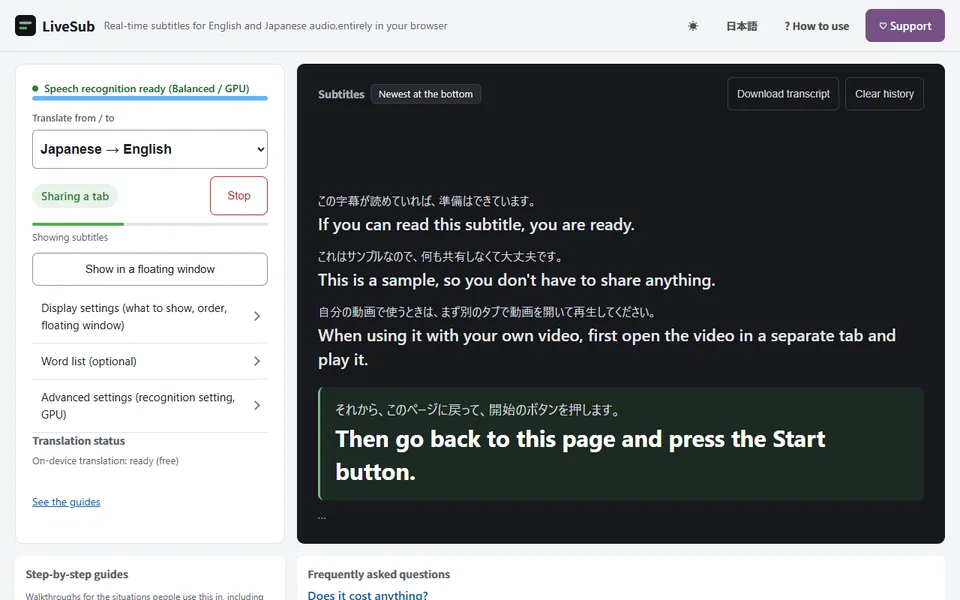
In short: open LiveSub in Chrome or Edge on a computer, set "Translate from / to" to Japanese → English, press "Start (share a tab)" and pick the tab playing the Japanese audio. Each sentence is listed in Japanese with its English translation. "Download transcript" saves all of it with timestamps, and "Copy transcript" puts the same text on the clipboard. Free, no account, no time limit.
What you end up with
A plain text file with one entry per sentence: the Japanese as it was heard, with a timestamp, and the English translation on the line beneath it.
[00:00:04] 今日は新しい機能を三つ紹介します
           Today I will introduce three new features.

[00:00:11] まず一つ目は検索です
           The first one is search.
These two sentences are made up to show the layout. The top of the file records the date and time you started, the recognition setting and which translation was used.
Every entry keeps the Japanese line with its translation beneath it (if a sentence could not be translated, a short note takes the translation's place); there is no export with the English alone. That helps when a sentence looks doubtful, because the Japanese it came from is right above it. If you need English only, keep the indented lines.
What you need
- Chrome or Microsoft Edge on a computer. In Firefox, LiveSub listens through a microphone or a loopback audio input (such as Windows Stereo Mix); on YouTube and Twitch, LiveSub for Firefox turns the video's audio into subtitles directly. Safari uses the same input method but is untested
- Not a phone or tablet. Mobile browsers cannot share tab audio
- The Japanese audio playing in a browser tab. A video, a live stream, a podcast in a web player, or a web meeting joined in the browser instead of the desktop app
- A one-time download of the speech recognition model: about 670MB for Japanese on the Balanced setting. After the first time, it is loaded from your browser's storage. On computers where recognition runs on the GPU, or on a CPU that is fast enough, translation may use PLaMo 3 Translate instead of the browser's built-in translator, which adds about 570MB the first time
Step by step
1. Open LiveSub and check the direction
Open LiveSub set to Japanese → English in a new tab. "Translate from / to" should read Japanese → English. Japanese and English are recognised by different models, so this setting has to match the language being spoken.
Leave "Recognition setting" on Balanced.
2. Press "Try the how-to video (no sharing)"
The first time, press "Try the how-to video (no sharing)". It shows the lines appearing without sharing any tab, and it gets the one-time download out of the way.
3. Press "Start (share a tab)"
Chrome's sharing dialog opens.
- Pick the "Chrome Tab" section at the top (not "Entire Screen")
- Choose the tab playing the Japanese audio
- Make sure "Also share tab audio" at the bottom left is ticked
- Click Share
Without the checkbox in step 3, no sound arrives and nothing is written down. LiveSub tells you that the audio box was not ticked; press "Start again" and tick it.
4. Play the audio
Go back to the audio's tab and play it. About one to two seconds after each sentence, the Japanese and its English translation are added to the list. Let it run to the end of the part you want.
To skip the sharing dialog, the free LiveSub extension for Chrome (also in the Edge store) starts from its icon on the audio's tab. Recognition still runs in the LiveSub tab it opens, so keep that tab open and save the transcript from there.
Using Firefox? Firefox cannot share a tab's audio, so LiveSub listens through a microphone or an audio input instead. Open LiveSub in Firefox, play the audio in another tab, and press "Start (mic or audio input)" on the LiveSub page. Allow microphone access when the browser asks. If your computer has a loopback input (such as Windows Stereo Mix), LiveSub picks it automatically; otherwise it listens through the microphone to the sound from your speakers (headphones will not work), and your own voice and the room are picked up too. There is no sharing dialog. On YouTube and Twitch, LiveSub for Firefox turns the video's audio into subtitles directly: press "Add to Firefox — it's free" to install it, play the video in another tab, and press "Start (YouTube / Twitch tab)".
Saving and copying the text
The bar above the subtitle list has the buttons.
- "Download transcript" saves the file described above. Its name is the date and time you started, such as
20261113_201502_livesub.txt - "Copy transcript" puts the same text on the clipboard, ready to paste into a document or an AI chat
- The menu beside them chooses the format. "Text (.txt)" is the one for reading. "Subtitles (.srt)" and "Subtitles (.vtt)" give a subtitle file in which each cue has the Japanese line and the English line; the guide to transcribing a live stream covers those
Three things to know:
- The download is complete; the page is not. The list on the page keeps the latest 200 sentences. The download and the copy include every sentence
- Earlier runs are kept. If you press Start again, for the next video for example, the earlier lines stay, and the saved text gets a heading for each run, such as "Run 2 (Japanese → English)". "Clear history" empties both the page and what would be saved
- Save before you close the tab. The transcript is not stored on your computer until you download it. If there are lines you have not saved or copied, the browser asks before the tab closes
Japanese text only, without translation
To get the Japanese words alone, choose "Japanese transcription (no translation)" under "Translate from / to", or open LiveSub set to Japanese transcription. The words are shown as they are heard, and the saved file has only the Japanese lines.
You can change the direction while it is running. Lines already on screen stay as they are, and the new direction starts from the next sentence.
Get names right before you save
Names are the weak point, and in a saved text the mistakes stay. Two settings help, and it is easiest to fill them in before you press Start.
- "Word list": add names and terms, one per line, and what is heard is corrected to your spelling. Japanese entries need at least 3 characters, English ones 4. To choose how a name appears in the English too, write it as a pair, "たなか = Tanaka". How to make a word list goes into detail
- "Today's keywords (up to 3)": one to three names that come up again and again, separated by commas. They are given straight to recognition on the Balanced setting, and the transcript header lists them. The box is empty again when you reopen the page
If you have a recording
LiveSub has no upload box and does not open files on your disk. It hears the tab you share, so a recording has to be playing in a browser tab, for example on the page of the site where it is kept. From there the steps are the same.
It listens as the audio plays, so a one-hour recording takes about an hour at normal speed. For shows in a web player, see Japanese podcasts with English subtitles.
Honest limits
- The English is machine translation. Japanese words that sound alike can be mistaken for each other, the same name can be spelled differently from line to line, and numbers can come out wrong. Check names, numbers and dates against the audio before you quote them; the timestamps tell you where to listen
- Recognition mishears. Loud music and several people talking at once reduce accuracy
- Timestamps count from the moment you pressed Start. If you started partway through, they will not match the video's own clock
- Only the audio is used. Text on screen and chat are not read
- English and Japanese only, on a computer. It needs Chrome or Edge on a desktop or laptop (Firefox: through a microphone or audio input)
- For meetings and webinars, follow the organiser's rules
Wrapping up
Japanese audio that plays in a browser tab can become English text you keep: each sentence with its translation and a timestamp, saved as a file or copied to the clipboard, with nothing uploaded.
Open LiveSub in Chrome on your computer and press "Try the how-to video (no sharing)" first.
About this guide: written by the maker of LiveSub. Steps, button names and figures are checked against the LiveSub app as of the date above. If something is wrong, please tell us through the contact page.